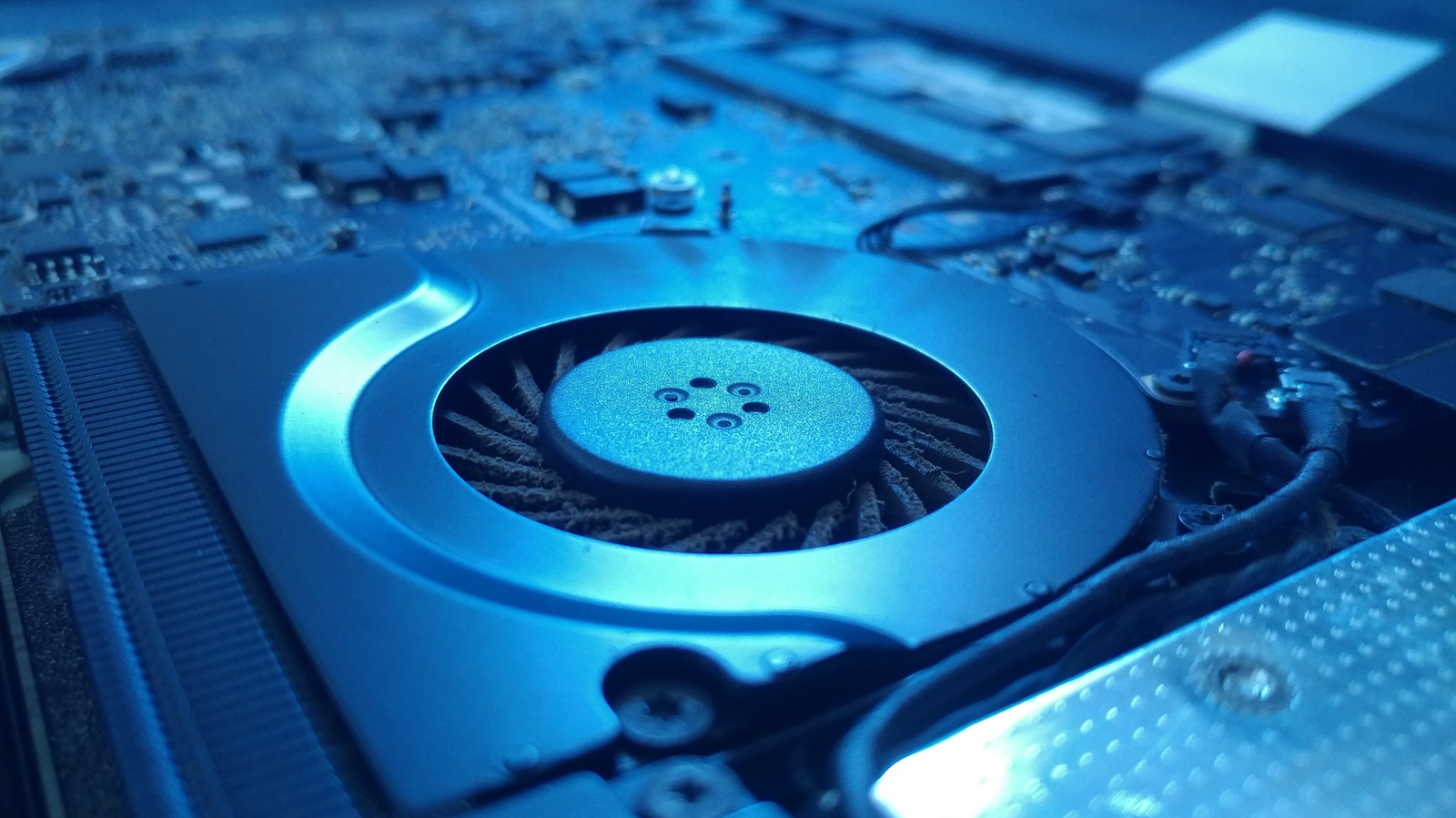
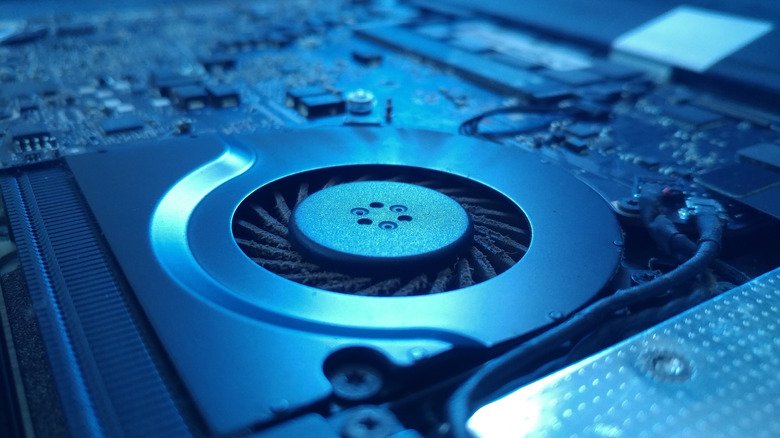
One moment you’re typing away, and the next your laptop fan roaring sounds like a small aircraft preparing for takeoff. Then, just as abruptly, it settles back down. That kind of unpredictable fan noise is common, and it usually comes down to two things: the machine is struggling to move air, or something in the background is pushing the processor harder than you realize.
Modern laptops are better than ever at balancing speed and heat, but their slim designs still rely on active cooling. Some fan noise is normal. The problem is when the noise arrives in sudden, loud bursts or refuses to stop. Fortunately, both common culprits—blocked airflow and hidden CPU activity—are easy to investigate without special tools.
Start With Airflow and Dust
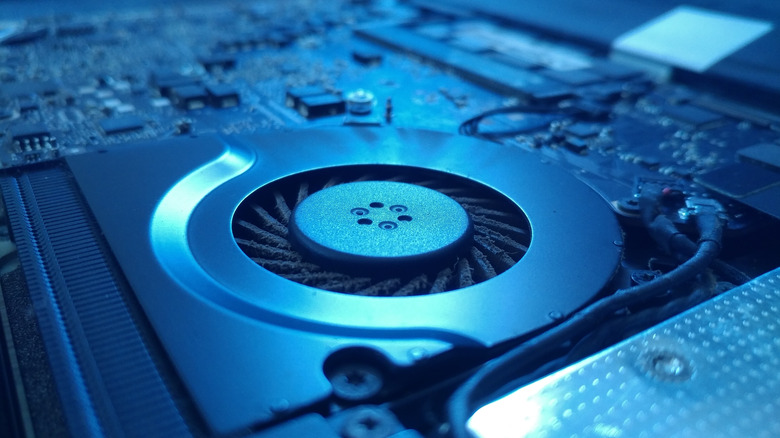
Before you dig into software, check where the laptop is sitting. Soft surfaces like beds, couches, and blankets can smother the vents and trap heat. A hard, flat surface such as a desk or table gives the cooling system room to breathe. If the noise continues there, dust is the next suspect.
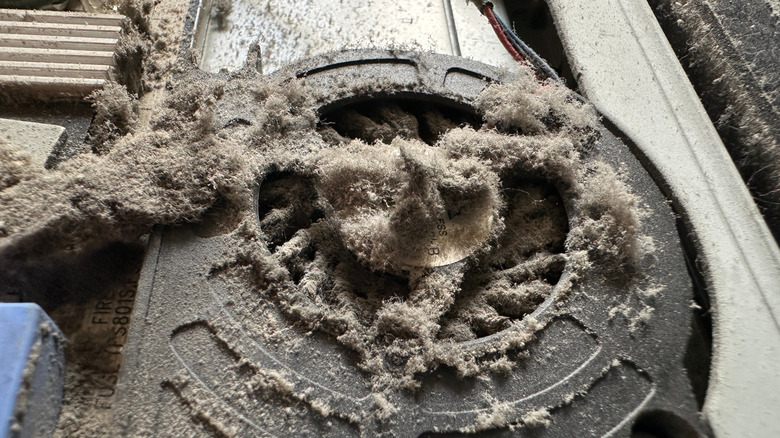
Dust buildup around the fans and vents restricts airflow, which forces the fan to spin faster and louder. In many cases, you can address this without opening the laptop:
- Power down the laptop and unplug any connected devices.
- Let the machine cool completely.
- Find the air vents, which may be on the underside or sides depending on the model.
- Use short bursts of compressed air, following the can’s instructions, to loosen dust and debris.
- Wipe away any remaining loose material with a clean microfiber cloth.
If that doesn’t solve the problem, you may need to open the laptop for closer access to the fans. An ESD-safe brush can help remove dust from internal components, but disassembly is more advanced and varies by model. Before you attempt it, check your warranty terms and the manufacturer’s guidance on user repairs—opening the laptop yourself may affect your coverage. If you’re not comfortable with the process, a technician is the safer choice.
Look for Hidden CPU Load
When fan noise comes and goes at random, the processor may be doing more work than you think. Background processes can quietly consume CPU time and generate heat, prompting the cooling system to ramp up.
On Windows, open Task Manager with Ctrl+Shift+Esc and go to the Processes tab. Click the CPU column to sort by usage, which puts the biggest resource consumers at the top. Then check the Startup apps section and disable programs you don’t need launching automatically when you log in. Some background processes are safe to end if you don’t use them—Calculator, Gaming Services, News and Interests, Phone Link, CTF Loader, and Groove Music are common examples—but avoid quitting processes indiscriminately, as that can cause crashes.
On a Mac, open Activity Monitor—Spotlight Search can help you find it—and select the CPU tab. Click the % CPU column to sort processes by resource use. To stop a process, select it, click the Stop button, and choose Quit. Be selective here too. Lingering processes tied to apps you’ve already closed, Rosetta applications you no longer need, and disk processes that are preventing an eject are reasonable candidates. You can also disable Spotlight indexing if you don’t need a fully indexed library.
When to Dig Deeper

Occasional fan bursts are part of normal laptop operation, especially in compact machines with high-powered components. But if the noise persists after you’ve cleared the vents and trimmed unnecessary background activity, it’s worth taking a closer look—either by opening the laptop for a thorough cleaning or by having a professional inspect it. The goal isn’t silence; it’s making sure the cooling system isn’t working overtime for no reason.