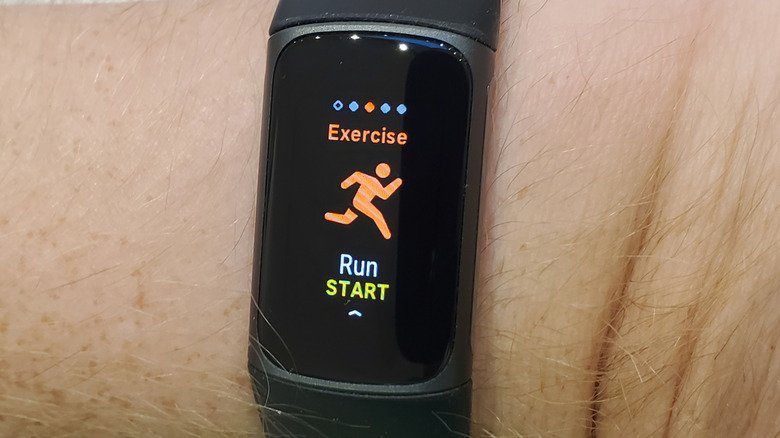
If your tracker is acting up, you may wonder whether you should restart your Fitbit. The short answer: doing so occasionally is safe and often effective, but there is no need to make it a habit. Restarting is a troubleshooting step, not routine maintenance.
What a Restart Can Fix
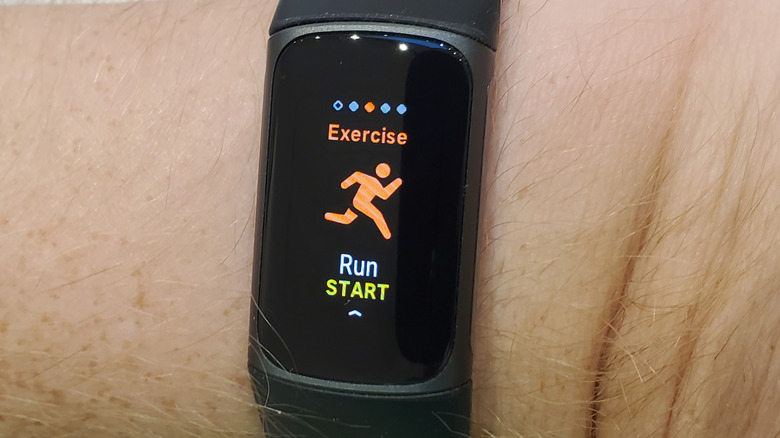
A restart can resolve several common glitches without touching your stored data. Typical problems that may disappear after a reboot include:
- The device failing to sync with the Google Health app
- A frozen or unresponsive screen
- Swipes or taps that do not register
- Delayed responses
- Steps, sleep, or other stats not being tracked properly
- Missing notifications and reminders
- A blank screen or a device stuck in a continuous reboot loop
Even a completely unresponsive Fitbit can sometimes be revived with a restart. The process is similar to rebooting a lagging laptop or resetting a router with a spotty connection.
Restart vs. Reset: Know the Difference
Restarting is not the same as resetting. A restart preserves your data, while a reset wipes it. Only reset the device if you plan to give it away, sell it, or if a serious problem persists after a restart.
Google also cautions against inserting anything into the small holes found on some models, which house sensors such as the microphone or altimeter. Unlike some other devices, Fitbit models do not have recessed reset buttons that require a paper clip or pin.
How to Restart Different Fitbit Models
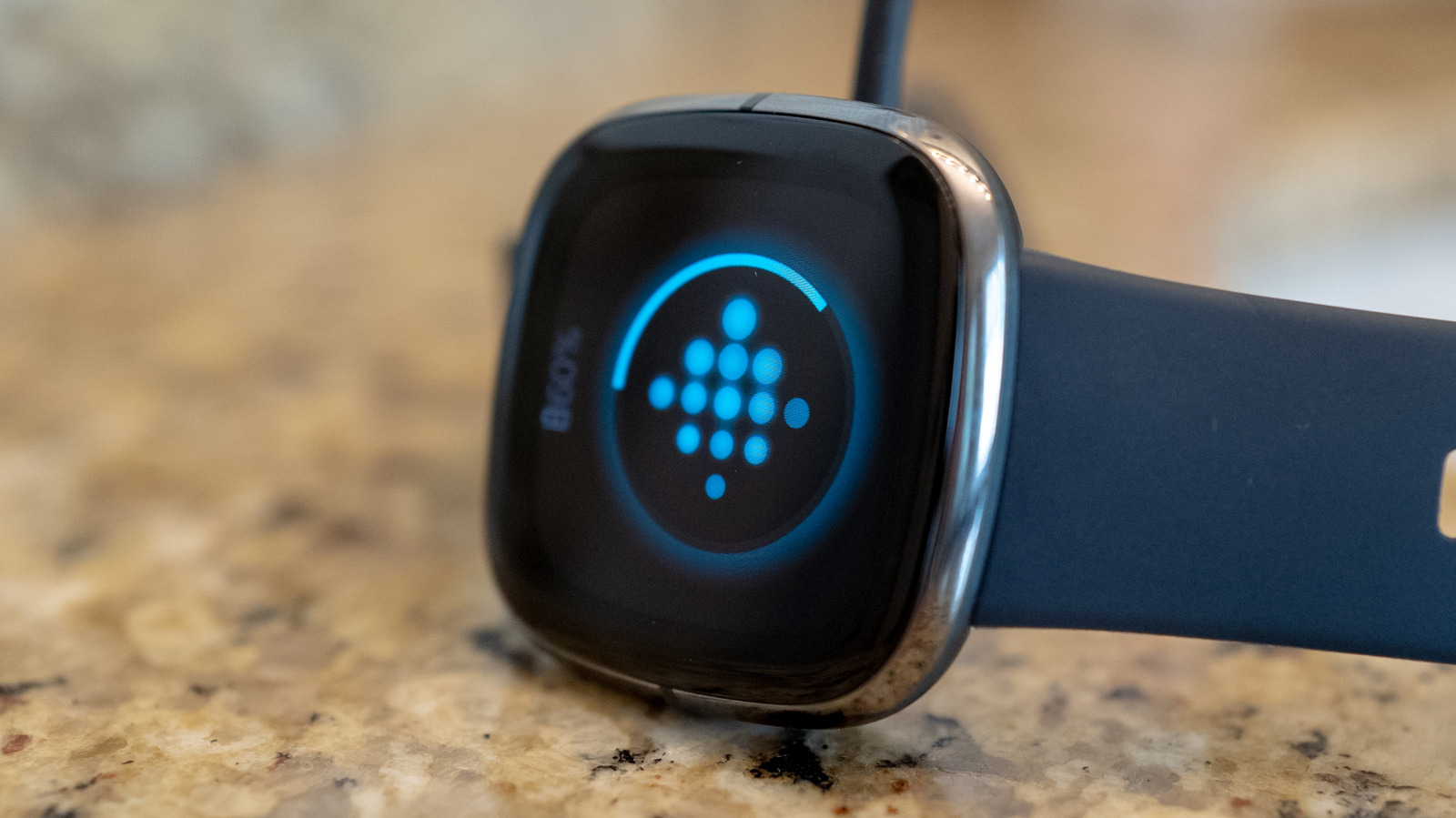
The method varies by device. For smartwatches like the Versa 4 and Sense 2, navigate to Settings > About > Shutdown > Yes.
For the Charge 5 and Charge 6, as well as the Inspire 3, go to Settings > Restart Device > Restart. On the Charge 3 and Charge 4, use Settings > About > Reboot Device. The Inspire 2 uses Settings > Reboot Device.
If you own an older model, consult Google’s support page for the correct procedure.
Newer devices like the Fitbit Edge require a long-press of the side button for up to 10 seconds, then select Settings > System > Restart.
Screenless models such as the Fitbit Air need to be connected to the charging cable plugged into a power outlet. Press and hold the back button for about 10 seconds until the side light flashes white, then release.
When the Screen Is Unresponsive
If the screen is frozen and you cannot access the settings menu, try these forced restart methods:
- Charge 5 and Charge 6: Connect to the charging cable, press the button on the flat end three times quickly, then wait 10 seconds for the Fitbit logo to appear.
- Inspire 3: Plug it in, press and hold its buttons for 10 seconds, release, and wait for it to vibrate and show the Fitbit logo.
- Smartwatches: Press and hold the button for 10 seconds.
When to Consider an Upgrade
Restarting is a simple first step that often resolves whatever issue has cropped up. If problems recur frequently, investigate further or consider that the device may have reached the end of its useful life. In that case, a new model might be the better solution.