
Like many Android users, you may rely on Google Messages as your default texting app. It has come a long way from the early days of Android, when third-party messaging apps were often the only way to get basic features. Google’s push for RCS and its own improvements have made Messages a solid choice. Still, the app ships with several default settings that can make the experience worse. If you want a calmer, more private, and less cluttered messaging app, here are five Google Messages settings to disable.
1. RCS read receipts
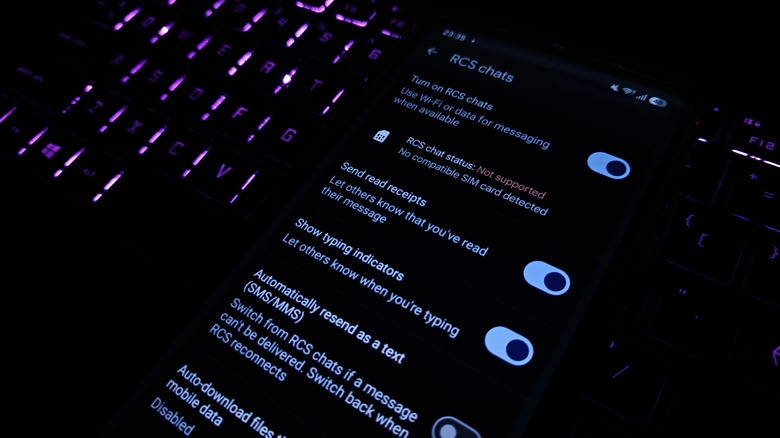
Read receipts tell the sender when you have opened their message. Many messaging apps have them, but they can create awkward social pressure. When read receipts are on, the other person knows you have seen their message, even if you are not ready to reply. Turning them off gives you more control over how much information you share. To disable RCS read receipts, open Google Messages, tap your profile in the top right, go to RCS chats, and switch off read receipts.
2. Outgoing and incoming message sounds
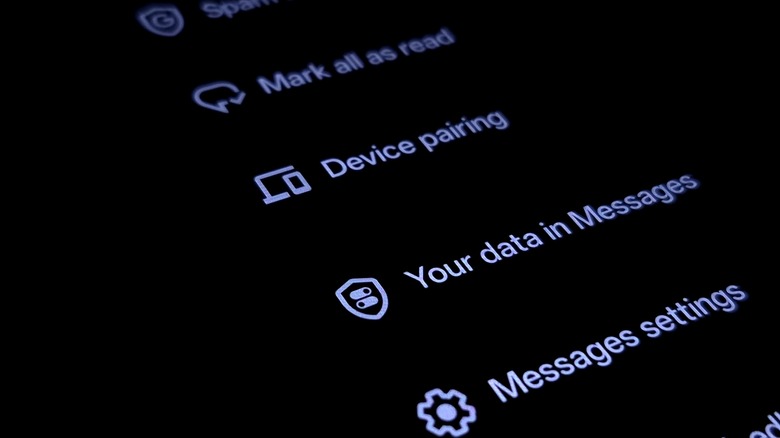
By default, Google Messages plays sounds when you send or receive a message while the app is open. These sounds can be distracting, especially in quiet environments, and they may annoy people around you. If you prefer a silent experience, you can turn them off. Tap your profile , open Settings, and find the toggle labeled Hear outgoing and incoming message sounds. Slide it off to stop the audio alerts.
3. Bubbles
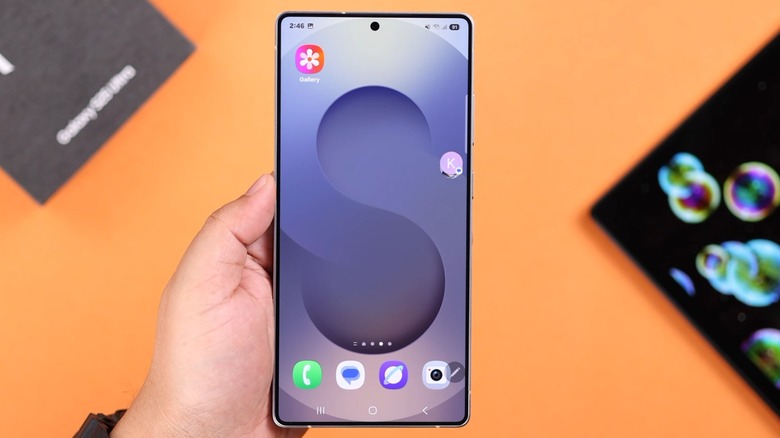
Bubbles are those floating chat heads that appear on top of other apps. They were introduced with Android 10 in 2019, but they are not for everyone. On a standard phone screen, bubbles can take up valuable space and make it harder to see the conversation. The same task can be handled through notifications, which let you reply without leaving what you are doing. To disable bubbles, go to Settings > Bubbles and select None. If you use a tablet or foldable, you might find bubbles more useful, but on a regular phone, many users prefer to keep them off.
4. Gemini in Messages
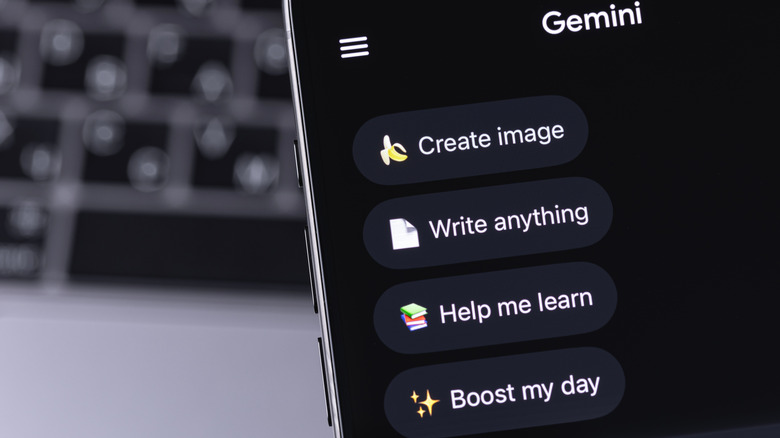
Google has been adding its Gemini AI assistant to many products, and Messages is no exception. The Gemini integration lets you chat with the chatbot inside the app, but it offers little that you cannot get from the standalone Gemini app. More importantly, enabling it may subject your data to different privacy policies. Google’s privacy practices around AI have raised concerns, and it can be difficult to tell which policy applies to which feature. If you care about keeping your messages private, disabling Gemini in Messages is a sensible step. Look for Gemini in Messages in Settings and turn it off.
5. Nudges
Nudges are reminders that prompt you to reply to messages you have not answered. They also remind you of birthdays. While birthday reminders can be helpful, reply nudges often add to the clutter on your phone without making you more likely to respond. If you find them annoying, you can disable them. Go to Settings > Suggestions & Actions > Nudges and toggle off the options you do not want. You can keep birthday reminders while turning off reply nudges, or disable both.
Why adjust these settings?
Google Messages is a capable app, but its defaults are not always ideal. Read receipts can pressure you into replying, message sounds can be disruptive, bubbles can clutter your screen, Gemini raises privacy questions, and nudges can feel like nagging. None of these changes are mandatory, but they can make the app feel more tailored to your preferences. Whether you want a quieter phone, more privacy, or simply a cleaner interface, taking a few minutes to review these settings is worthwhile.