Your iPhone holds a lot more than photos and messages, and a handful of iPhone security settings can make that data far harder to reach if the device is lost, stolen, or briefly handed to someone else. Apple builds in several layers of protection, but not all of them are switched on by default. The following adjustments are straightforward to find and can meaningfully change what a stranger can do with your phone.
Shut down what the Lock Screen reveals
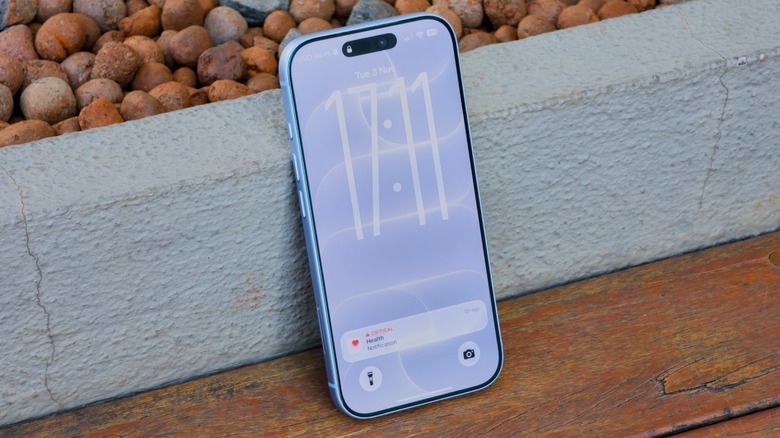
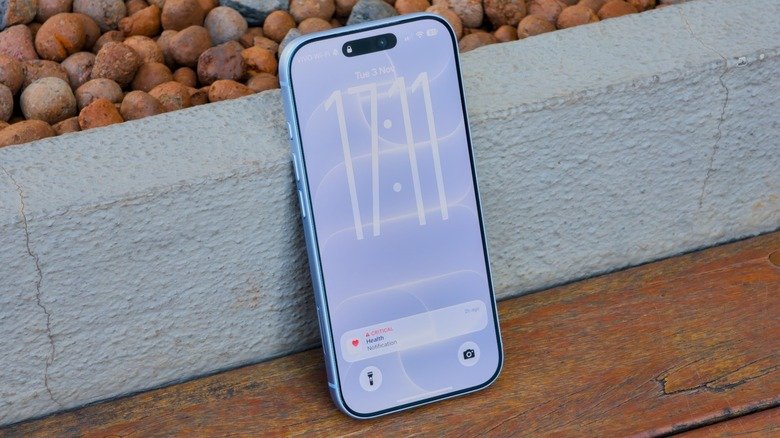
The Lock Screen is the first thing anyone sees when the display wakes, and out of the box it offers more access than many people realize. Control Center and Siri can be reached without a passcode, which means someone could put a misplaced phone into airplane mode and make it harder to locate.
Two changes close much of that gap. In Settings, open Notifications and then Show Previews, and choose When Unlocked so message previews stay hidden until Face ID or Touch ID confirms it is you. Then return to the main Settings menu, select Face ID & Passcode (or Touch ID), enter your passcode, and scroll to Allow Access When Locked. There you can switch off Control Center, Siri, search, message replies, home controls, and anything else you would rather not expose. Those features come back as soon as the phone is unlocked.
Use Safety Check to audit app access
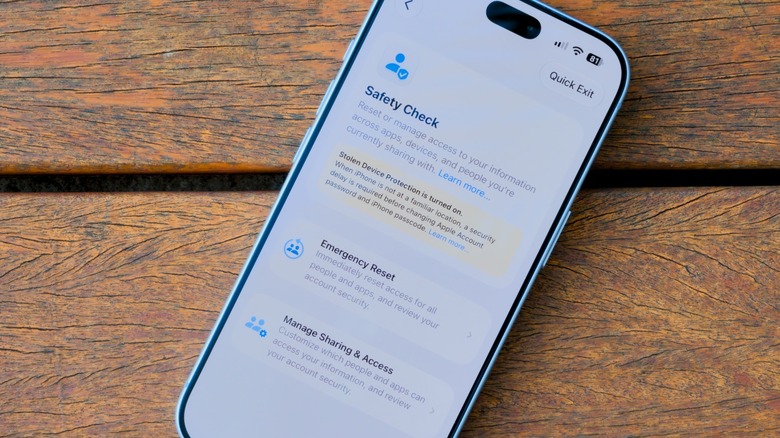
Apps ask for location, camera, photos, and other permissions constantly, and it is easy to tap Allow without reading. Safety Check, found under Privacy & Security in Settings, walks you through a review of those decisions. Choosing Manage Sharing & Access lets you see who you share location with in Find My and which apps have been reaching sensitive information, and you can revoke access with a single tap.
For a closer look, return to Privacy & Security and inspect each category. Apps that want your location can often be set to While Using rather than Always, and Precise Location can be turned off where exact coordinates are unnecessary, with navigation apps being the obvious exception. Turning on App Privacy Report adds detail about how often apps have used your location, microphone, or other data.
Lock or hide apps you would rather keep private
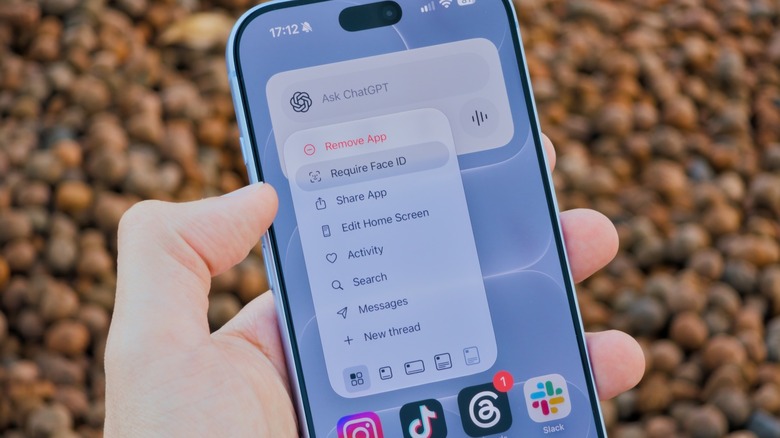
Handing an unlocked phone to a friend to show one also hands over your messages and notes. Pressing and holding an app icon on the Home Screen and choosing Require Face ID (or Require Touch ID) makes that app ask for authentication every time it opens, even while the phone is already unlocked. That is a useful barrier against someone who borrows a phone in an apparent emergency and then tries to open a payment app.
If you do not want the app to be visible at all, the same long-press menu offers a Hide option. The icon leaves the Home Screen and moves into a Hidden folder in the App Library, which requires authentication to open. Hidden apps do not deliver notifications or calls, so this works best for apps you do not need alerts from.
Stop apps from tracking you across the board
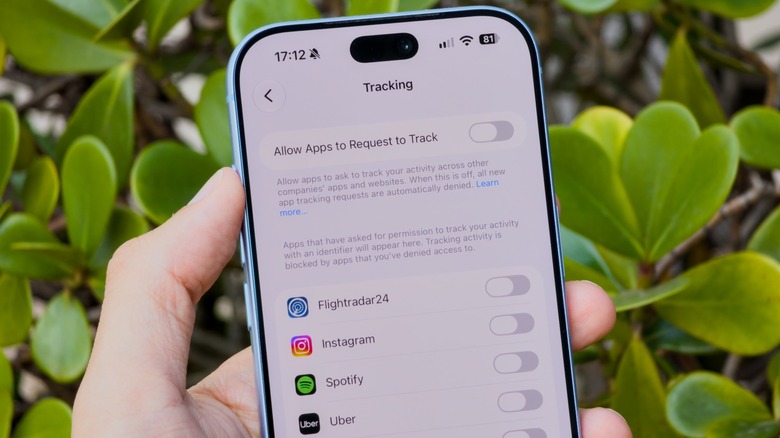
Since iOS 14.5, apps that collect data about your activity have had to ask permission first. Rather than answering each request individually, go to Privacy & Security, open Tracking, and turn off Allow Apps to Request to Track. Requests are then denied automatically. This does not eliminate all data collection, but it cuts down on what apps and websites can learn about you.
Apple also runs its own advertising in the App Store, Apple News, Stocks, and Apple Maps. The company does not share that data with third parties, but you can still opt out of personalized ads by opening Privacy & Security, selecting Apple Advertising, and turning off Personalized Ads. Ads will continue to appear in those apps, just with less targeting.
Turn on Stolen Device Protection
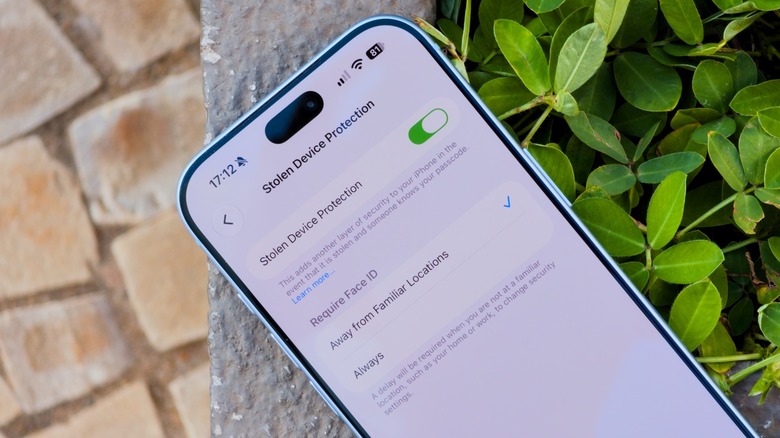
A known tactic involves watching someone type their passcode from a distance, taking the phone, and using that passcode to reach authenticated apps or even change the Apple Account password. Stolen Device Protection counters this by noticing when the iPhone is away from familiar locations such as home or work. In those unfamiliar places, sensitive actions like viewing passwords or changing Apple Account settings are blocked even if the passcode is known.
Such actions remain possible away from familiar locations after a one-hour delay, which gives you time to mark the phone as lost and contact your bank. Newer iPhones ship with the feature enabled, but it is worth confirming. Open Settings, go to Face ID & Passcode (or Touch ID), and check that Stolen Device Protection is on. Two-factor authentication must be set up on your Apple Account, and Find My must be enabled. Remember to switch it off before selling the phone or passing it to someone else.