

When your MacBook keyboard not responding can bring your work to a halt, the instinct is often to assume a hardware failure. But before you schedule a repair, it’s worth running through a few basic checks. The culprit may be a temporary software glitch, a low battery in a wireless keyboard, or a bit of debris lodged under a key. These fixes can help you determine whether the problem is serious or something you can resolve at home.
Start with the simplest fixes

Begin by restarting your Mac. Click the Apple menu and choose Restart. If you’re using a wired keyboard, unplug it and plug it back in to ensure a solid connection. For a wireless keyboard, turn it off and then on again. If the keys still don’t respond, open System Settings, go to Bluetooth, and unpair the keyboard before pairing it again. This can clear up temporary connection issues.
Wireless keyboards also need power. If yours has a rechargeable battery, plug it in to charge. If it takes replaceable batteries, put in fresh ones. A weak battery can cause keys to stop working without warning.
Check your macOS accessibility settings
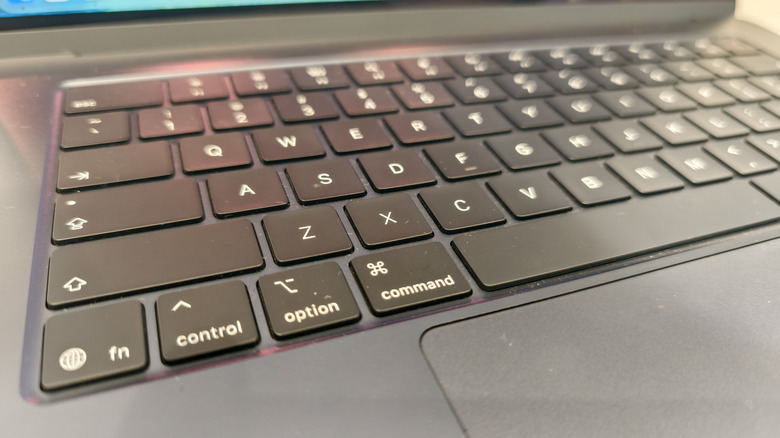
Sometimes the problem isn’t the keyboard at all but a setting you may have enabled by accident. Open System Settings, go to Accessibility, and then click Keyboard. Look for Sticky Keys or Slow Keys. These features change how your Mac registers keystrokes and can make the keyboard seem unresponsive. If either toggle is on, turn it off to restore normal behavior.
If you need to type while troubleshooting, you can enable the Accessibility Keyboard from the same menu. It displays an on-screen keyboard that you can click with your mouse cursor, letting you continue working or searching for solutions.
Isolate the cause with external tools
If the basic steps don’t help, connect an external keyboard to your MacBook. If that keyboard works, you can be confident the issue lies with the built-in keyboard rather than macOS. Next, boot your Mac in safe mode to check whether a third-party app is interfering. Shut down your Mac completely from the Apple menu—don’t just put it to sleep—then press and hold the power button until you see Loading startup options. Select your startup disk, hold down the Shift key, and click Continue in Safe Mode.
Running Apple Diagnostics is another way to check for hardware problems. This built-in tool can flag issues that might not be obvious.
Clean the keyboard carefully

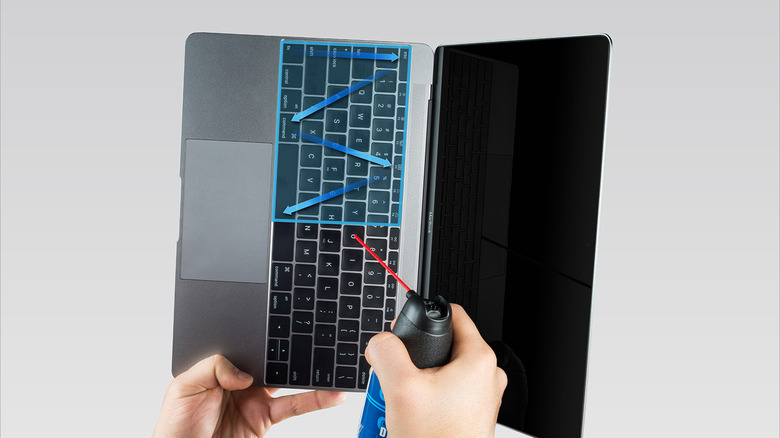
If only one or two keys are misbehaving, debris is a likely cause. Hold your MacBook at a 75-degree angle and use compressed air to blow out particles, then rotate the laptop and repeat. You can also turn the MacBook upside down and gently tap the back cover to dislodge dirt. Avoid removing keycaps yourself—the mechanism is delicate and easily damaged.
When to seek professional help
If none of these steps solve the problem, it’s time to book an appointment with Apple Support. A specialist can examine your MacBook and determine whether a keyboard replacement is necessary. Older MacBooks from 2015 to 2019 were known for problems with the butterfly keyboard, which was especially prone to sticking due to small particles. But even newer MacBooks can develop keyboard issues over time, so a repair may still be the answer.