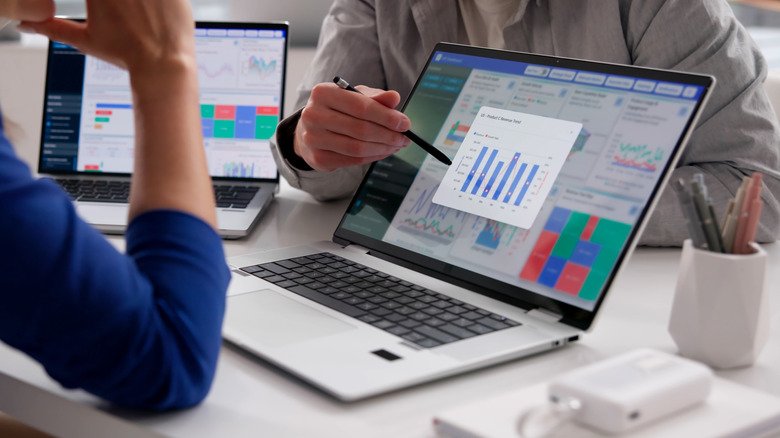
If you want to use your laptop as a second monitor, you do not necessarily need to buy new hardware. A spare laptop can serve as extra screen space for work, browsing, or presentations. The setup is not as simple as connecting an HDMI cable between two computers, but several methods can get the job done. Your options depend on the operating systems involved, whether you prefer a wireless or wired connection, and how much lag you are willing to tolerate.
Windows to Windows: Built-In Wireless Casting

When both the main computer and the spare laptop run Windows 10 or 11, the operating system includes wireless casting tools based on Miracast. This allows the two machines to connect over Wi-Fi without extra software.
On the laptop you intend to use as the second screen, open Settings, then System, then Projecting to this PC. Click Optional features, followed by View features, and add Wireless Display. After installation, return to the same page and set the option to Available everywhere, then open the Wireless Display app.
On the primary computer, press the Windows key plus K, choose the spare laptop from the list of available displays, enter the PIN, and allow keyboard and mouse input. You can then duplicate or extend the display, and switch between modes at any time with Windows key plus P.
Both machines need Wi-Fi for this method, and some lag is possible. It works well for presentations or managing many open tabs, but it may not be ideal for gaming.
Mac to Mac: AirPlay With Compatibility Limits
If both devices are Macs, AirPlay can connect them, but the MacBook used as the second screen must be from 2018 or later. Once compatibility is confirmed, go to the MacBook that will act as the second display, open System Settings, select General, then AirDrop & Continuity. Turn on AirPlay Receiver and set Allow AirPlay for to Current User. Both MacBooks should be signed into the same Apple ID.
On the primary device, open System Settings, then Displays, and click the plus sign in the dropdown menu to choose the secondary device. You can then select mirroring or extended display under settings. Like Miracast, AirPlay works over Wi-Fi and may introduce a slight delay. A wired HDMI option, described below, can reduce lag.
Mixed Systems and Linux: Deskreen and a Virtual Display

Connecting different operating systems, such as a Windows PC and a MacBook, or involving Linux, requires software like Deskreen. It is a free, open-source tool that runs over Wi-Fi.
Make sure both computers are on the same Wi-Fi network, then download Deskreen on the main device. Deskreen will provide a QR code and URL. Open that URL in the spare laptop’s browser to connect the devices. Deskreen mirrors the display by default. To extend the display to the spare laptop, you need a cheap virtual display adaptor, sometimes called a dummy plug, in the main computer’s HDMI port.
As with other Wi-Fi-based methods, expect some lag. For gaming or other activities that require a smoother connection, consider the wired approach below.
Wired HDMI: Capture Card Workaround
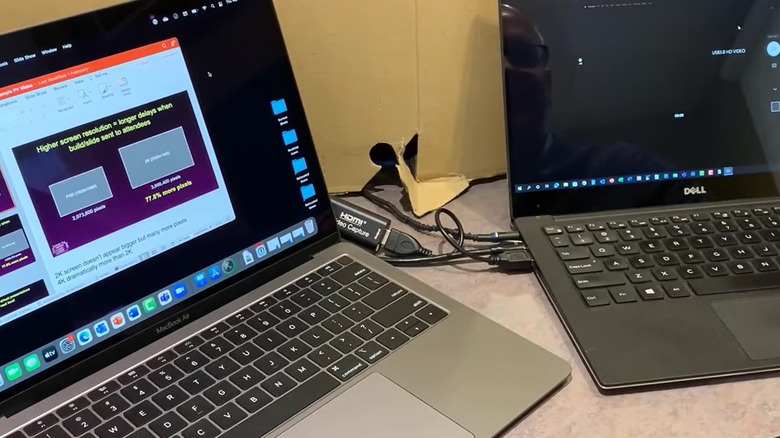
Most laptop HDMI ports are video-out only, so a direct HDMI cable between two laptops will not extend or mirror the displays. The workaround is an HDMI-to-USB video capture card.
Plug the main device’s HDMI cable into the capture card, then plug the card’s USB end into the spare laptop. The capture card functions as a webcam, so you can view the feed in the laptop’s camera app or a free video application like OBS Studio, which runs on Windows, Mac, and Linux.
This wired method can also connect a PlayStation or Nintendo Switch to a laptop if you want to play a console without a TV. Some lag may still occur, but it is usually less than with Wi-Fi connections and unlikely to matter unless you are a competitive gamer.
Choosing the Right Approach
For quick, cable-free setups between two Windows machines or two recent Macs, the built-in tools are the simplest route. If you need cross-platform support or are using Linux, Deskreen offers a free solution with mirroring out of the box and extension possible with a dummy plug. When low latency matters, an HDMI capture card provides a more responsive wired connection. Any of these methods can turn a spare laptop into useful extra screen space without the cost of a new monitor.