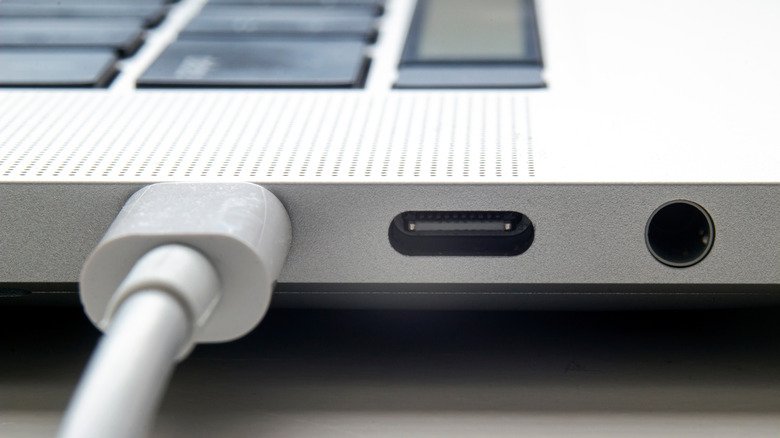
When a USB device not showing up on MacBook interrupts your workflow, the cause is often simpler than it first appears. macOS includes safeguards that can block accessories until you grant permission, and hardware factors such as insufficient power or a faulty cable can also prevent detection. Working through the possibilities in a sensible order usually resolves the problem without a trip to a repair shop.
Check macOS accessory permissions first
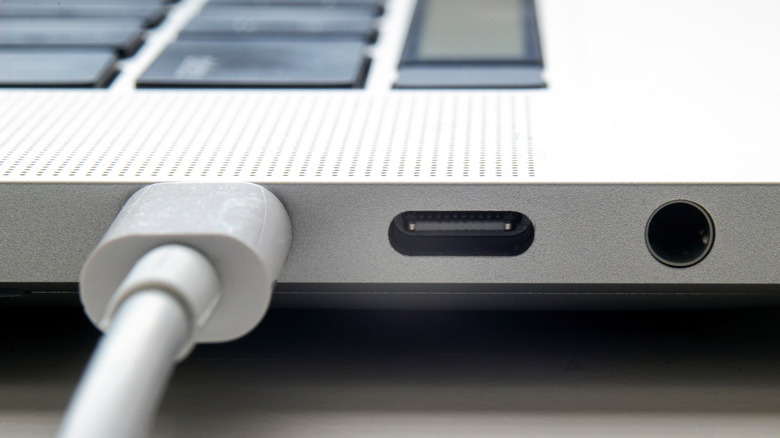
By default, macOS asks you to approve new accessories before they can exchange data. This measure exists to reduce the risk of malware being injected through a connected device. If you decline that prompt—even by accident—a legitimate accessory will remain unable to transmit data until you approve it. Charging can still function regardless of the permission decision.
Unplugging the accessory and connecting it again typically brings the prompt back. To reduce future interruptions, open the Apple menu, go to System Settings, select Privacy & Security, and scroll to the Accessories section. There you can select Ask for new accessories, Automatically allow when unlocked, or Always allow. The Always allow option is best avoided unless you are always present with your Mac or working in a highly secure setting.
Confirm whether the Mac detects the device at all
If permissions are not the issue, verify that macOS registers the hardware. Hold the Option key and choose Apple menu > System Information. When the accessory appears under Hardware, the next step is to consult the manufacturer’s online support resources. If the device is absent from that list, or if it appears but produces an error each time you connect it, the problem may lie elsewhere.
Rule out power problems
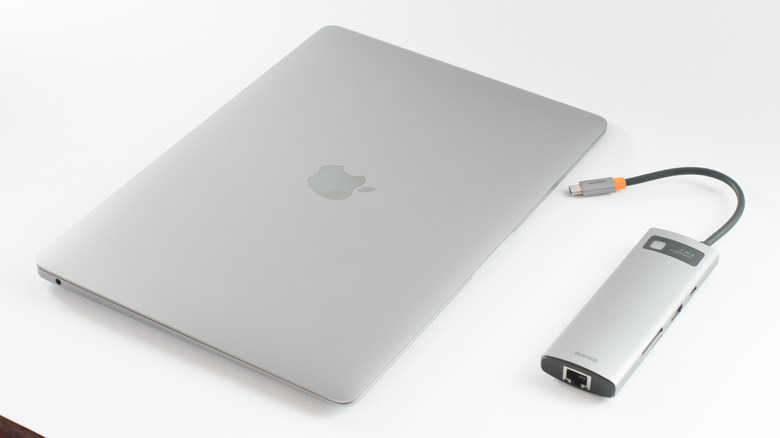
Power is a frequent culprit. Certain accessories draw more current than a Mac’s USB port can deliver. In that situation, macOS should display a related message, and the accessory may have its own power cable that needs to be connected. If the device has no separate power input, the port itself may be the source of the trouble. Try a different USB port on the Mac, or connect the accessory directly rather than through a hub or dock. Should power-related warnings persist across attempts, contacting Apple technical support is advisable, since the Mac may not be supplying power to its USB ports.
Simplify the connection chain
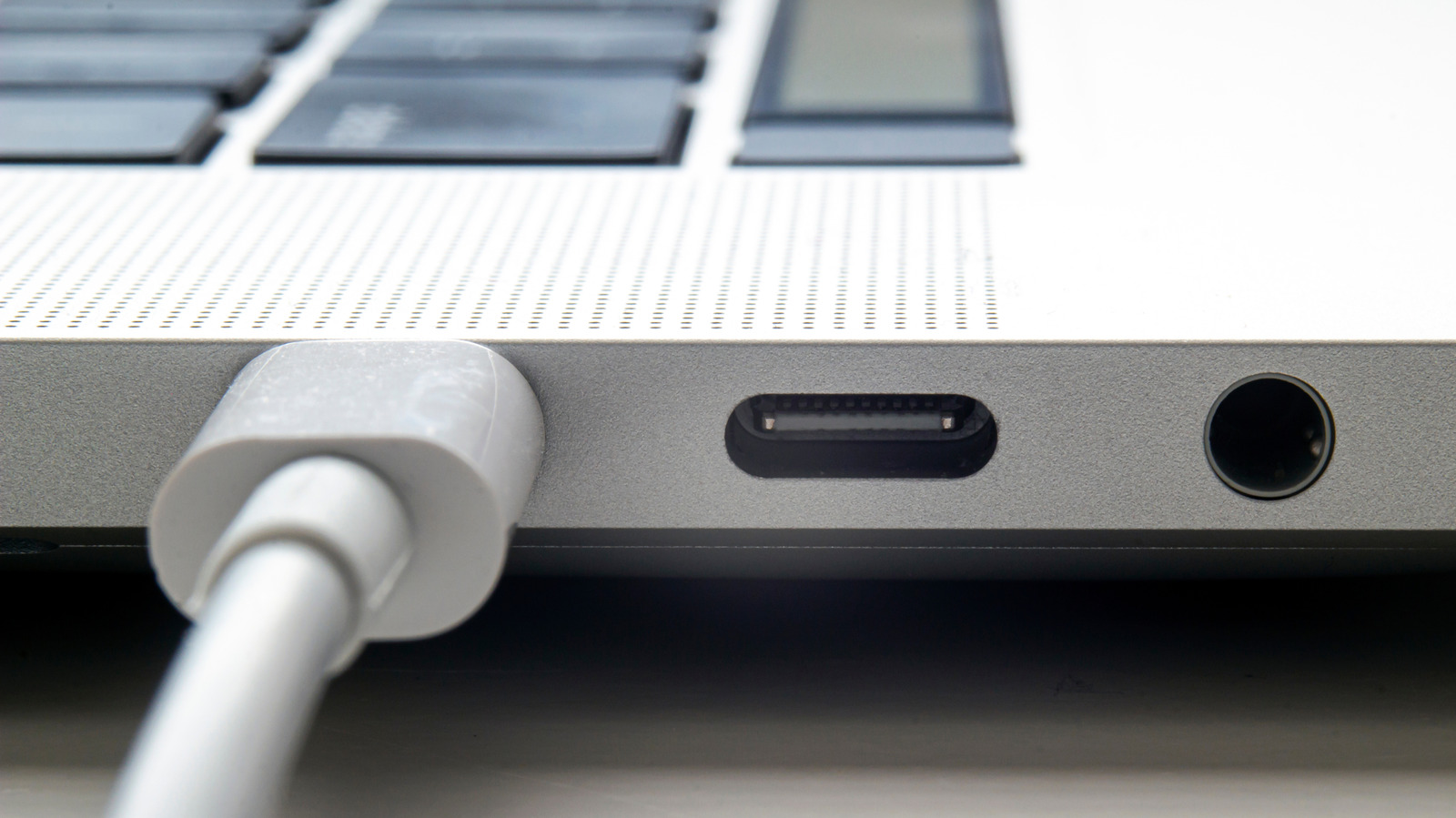
Hubs and docks frequently depend on their own power supplies, and even self-powered models can introduce complications because power and data must travel across multiple links. A Thunderbolt dock, for example, may handle an SSD without issue while a wireless mouse receiver fails to work until it is plugged straight into the laptop. Whenever you have enough free ports, connecting the accessory directly is the safer choice.
Keep software and drivers current
Make sure macOS is fully updated: open the Apple menu, go to System Settings, select General, and click Software Update. Software bugs or driver compatibility problems could interfere with detection. Some accessories also require proprietary software to function, so confirm that the latest version is installed by checking the Mac App Store or the manufacturer’s website.
Check formats, cables, and physical condition
External cards and drives must use a file system format that macOS supports, specifically APFS, FAT, or ExFAT. Also confirm that the USB cable matches the device’s power and bandwidth needs. Inspect both cables and ports for damage or debris, since lint and bent pins can be enough to stop a connection from working. Lint, dust, and grime can usually be cleared with a can of air or by gently wiping with a soft-tipped tool. If a cable shows browning or exposed wires, replace it; those signs indicate a fire hazard.