
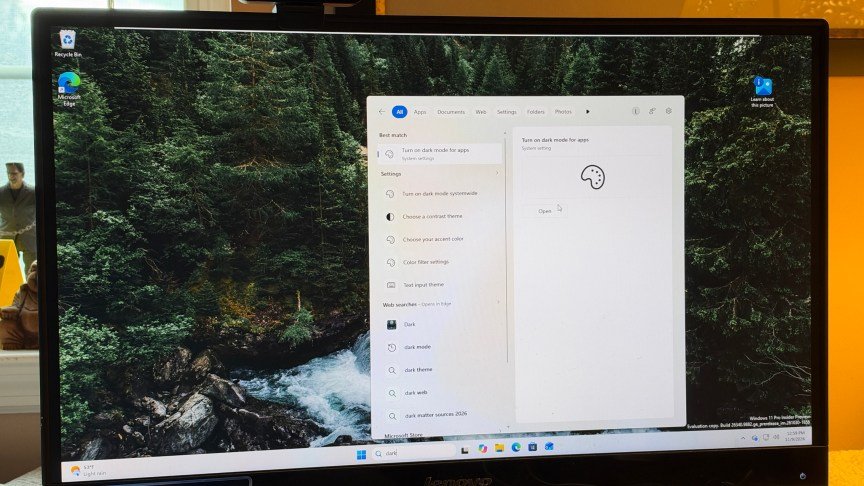
Microsoft is testing a new capability in Windows 11 that could spare users from hunting through menus to find a setting. The feature, called Windows 11 Search inline actions, lets you type the name of a setting and then jump straight to it from the search results. The change is currently available in the Beta channel of the Windows Insiders Preview, according to Microsoft.
The idea is simple: instead of remembering whether a particular option lives under System or Personalization, you can type a phrase such as “Dark mode” or “Bluetooth” into the search field. The results window then presents an Open button that takes you directly to the relevant settings screen.
What inline actions can do

Microsoft described the new search experience as built on WinUI 3 and said it is faster and more efficient, with a streamlined design that makes results easier to scan. The company listed several examples of tasks that inline actions are meant to handle directly, including turning on dark mode or Bluetooth, adjusting screen brightness, muting the device, and arranging windows.
In practice, the feature does not complete every task inside the search box itself. Instead, it surfaces the right destination so you can make the change there. For people who know their way around Windows settings, that may be a minor convenience. For anyone who has ever forgotten where a specific toggle is buried, it could be a meaningful time saver.
Typo tolerance arrives alongside

The same preview build also improves how search handles misspelled queries. If you type “drak” instead of “dark,” for example, Search is designed to understand what you meant and return results for Dark mode. Microsoft said these search improvements will continue to be refined over the coming weeks.
The update is not limited to search. Windows Hello facial recognition is getting a small assist for dark environments. A new option lets the screen brighten temporarily to help the camera recognize your face when lighting is poor. To turn it on, go to Settings, then Account, then Sign-in options, then Facial recognition, and enable the switch labeled “Automatically adjust screen brightness during face recognition.”
Other parts of the build touch on Live captions, Gaming, File Explorer, and Microsoft 365 cloud storage, according to Microsoft.
How to try the new search skills
The features are not yet available to everyone. To test them, you need to be enrolled in the Windows Insiders Program and signed up for either the Beta or Experimental channel. You also need to be running Beta Preview Build 26320.9876 or higher. To confirm your build number, open Settings, select System, and click About; the Windows Info section will show the build.
For regular Windows users who are not in the Insiders Program, the improvements are expected to arrive relatively soon. A rollout alongside the December Patch Tuesday update on December 8 would fit Microsoft’s pattern of squeezing changes in before the end of the year, though the company has not confirmed that timing.
Why it matters
Windows Search has long been a mixed bag, sometimes returning local files, sometimes web results, and often requiring users to know exactly what they were looking for. Inline actions shift the feature toward being a shortcut for common tasks rather than just a list of links. Whether it saves time depends on how reliably the search interprets what you type, but the direction is clear: Microsoft wants Search to do more than find things. It wants Search to help you act.