
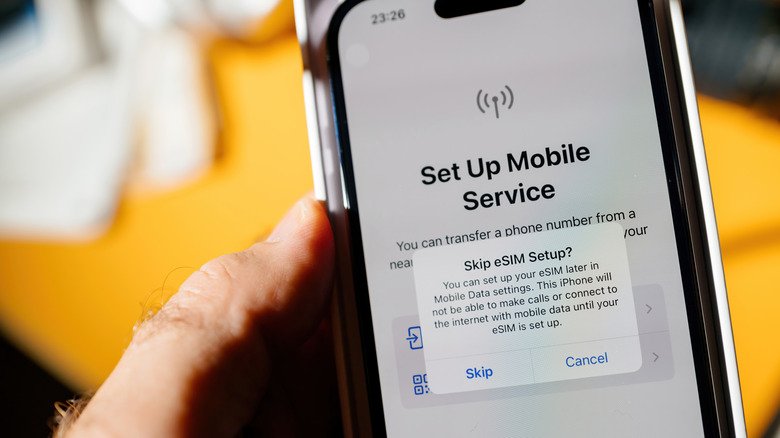
Before you rely on a digital SIM for an upcoming trip, it helps to know how to check eSIM support on your phone. The good news is that the process is quick, and it works similarly whether you use an iPhone or an Android device. The key is finding a code called the EID.
What the EID tells you
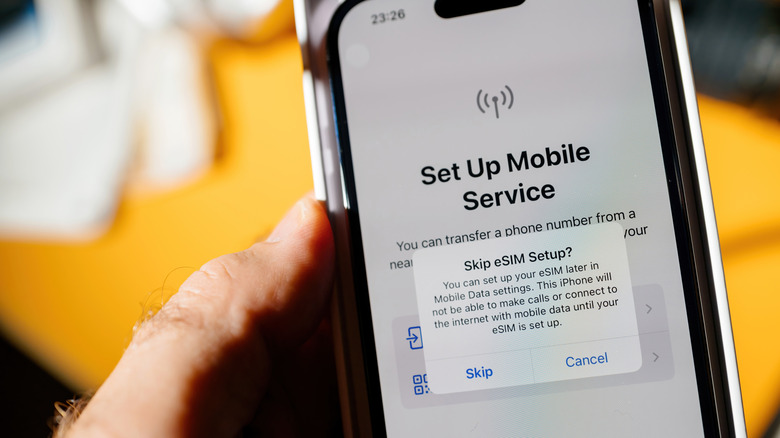
An eSIM is a SIM that is built into your device rather than a removable card. To activate a carrier plan, your phone needs the right hardware, and the EID is the identifier tied to that embedded chip. If your phone displays an EID, it supports eSIMs. If the code is missing, the hardware is likely not there.
How to find the EID on iPhone and Android
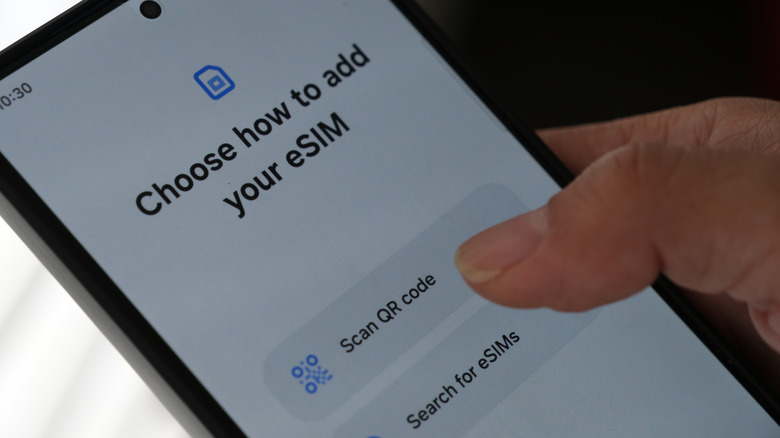
The fastest method works on both platforms: open the phone app and dial *#06#. That should bring up device information, including the EID. From there, the menus differ slightly.
On an iPhone
Go to Settings > General > About and look for an EID. It is a 32-digit number. Apple states that eSIM support begins with the iPhone XS, XS Max, and XR, and continues with later models. The iPhone 13 and newer can run two eSIMs at the same time.
On an Android phone
Open Settings > About phone and check under Device details or Status information for the EID. You can also try Settings > Network & Internet (or Connections on Samsung phones) > SIM manager to see whether there is an option to add an eSIM.
Why not every phone has eSIM
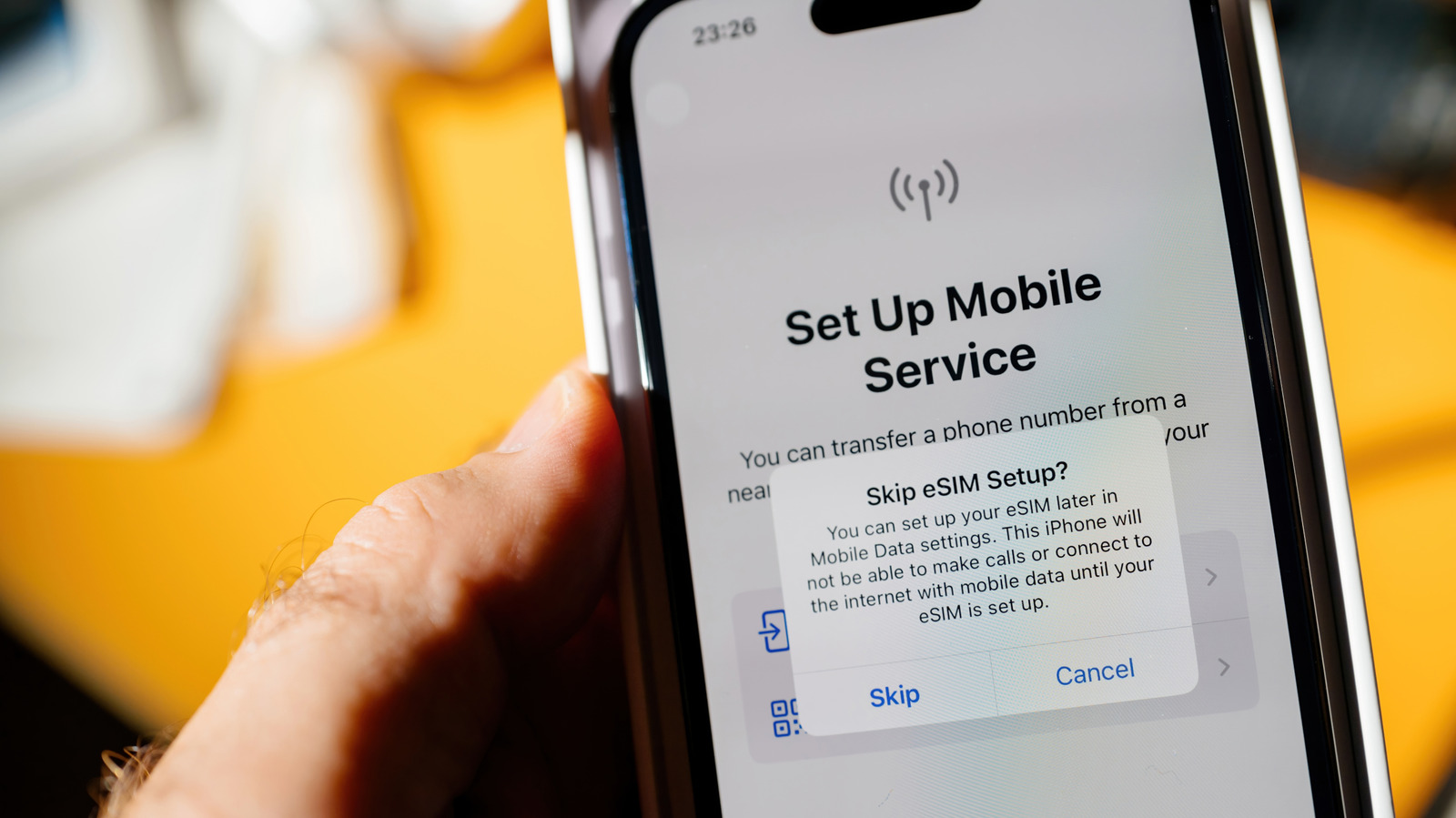
Android devices began getting eSIM support in 2017, and iPhones followed a year later. Because Apple makes both the hardware and software, checking an iPhone is relatively straightforward. Android is more fragmented. The Google Pixel 2 and 2 XL gained eSIM support in 2017, but Motorola did not add it until 2019, and Samsung waited until 2020 with the Galaxy S20 series. Many budget or older Android models, as well as some region-specific variants, leave out the embedded chip entirely. That is why the EID check is the most reliable way to know for sure.
Carrier locks and activation matter too
Having an EID does not guarantee that an eSIM will work with any carrier you choose. Your phone also needs to be unlocked. A carrier-locked device may still show an EID because it can accept an eSIM from that carrier, but it might reject profiles from other providers. That could interfere with plans to use a local carrier while traveling abroad. On an iPhone, you can check for a carrier lock by going to Settings > General > About and looking for “No SIM restrictions” next to Carrier Lock.
It is also worth confirming that your carrier or service provider actually supports eSIM activation. Not every provider has rolled out the feature, even when the phone is capable. If you are unsure, contact your mobile network provider to confirm compatibility for your exact device.
What dual SIM means in practice
When a phone supports eSIM, it often also supports dual SIM functionality. That means you can usually run a traditional SIM alongside the eSIM. This is useful for keeping a personal and work number active on one phone, or for having a home line and a travel plan available at the same time.
For a quick answer, dial *#06# and look for the EID. Then confirm the phone is unlocked and that your carrier supports eSIM activation before you depend on it.