Spotting a small blue dot near the battery icon on an Android phone can be puzzling, especially when it appears and vanishes within seconds. The Android location indicator is not a glitch or a missed notification. It is a built-in privacy feature that tells you an app is currently accessing your location.
What the Android Location Indicator Actually Signals
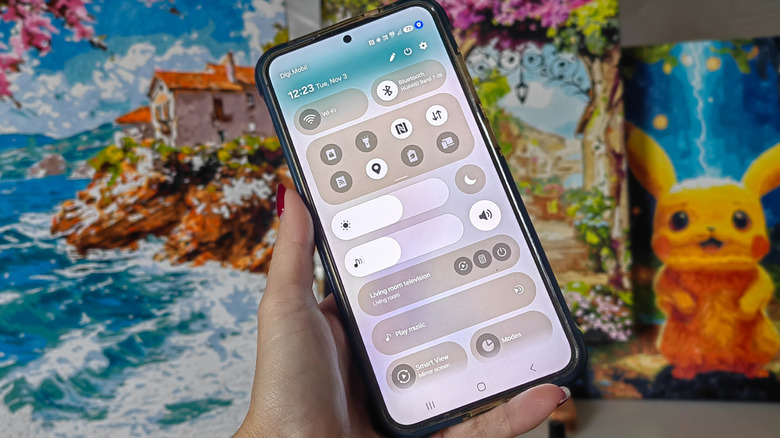
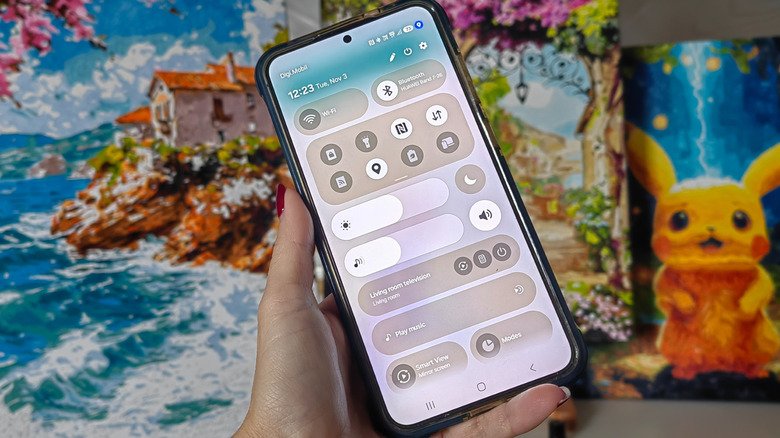
The blue dot appears in the status bar, usually in the top-right corner alongside icons for Wi-Fi, signal strength and battery. When it is visible, an app is pulling location data through GPS, Wi-Fi signals or nearby cellular towers. The feature is part of Google’s effort to make privacy more transparent on Android.
A related green dot serves a similar purpose for camera and microphone access. Older versions of Android kept location permissions buried in settings menus that few people checked. The current approach surfaces this information in real time so it is harder to miss.
According to Android’s developer documentation, the location indicator reflects active app behavior on Android 17 and newer. It shows usage that is occurring right now or happened within the last 10 seconds, specifically for apps running in the foreground. The dot is not a full history of every location check; it is a live flag for what is happening at that moment or just moments ago.
When to Pay Attention
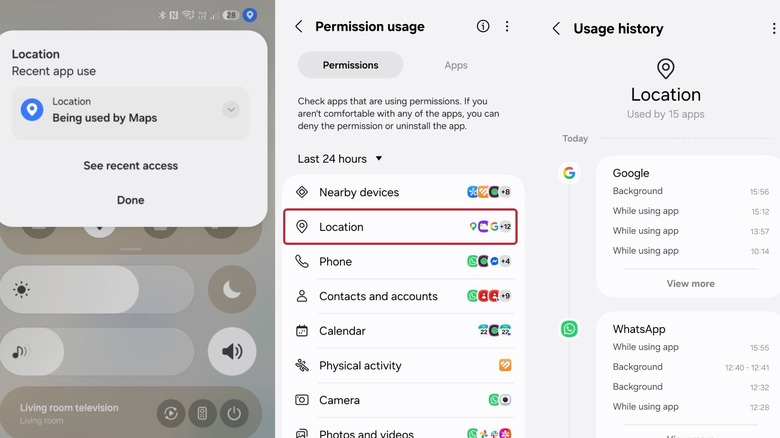
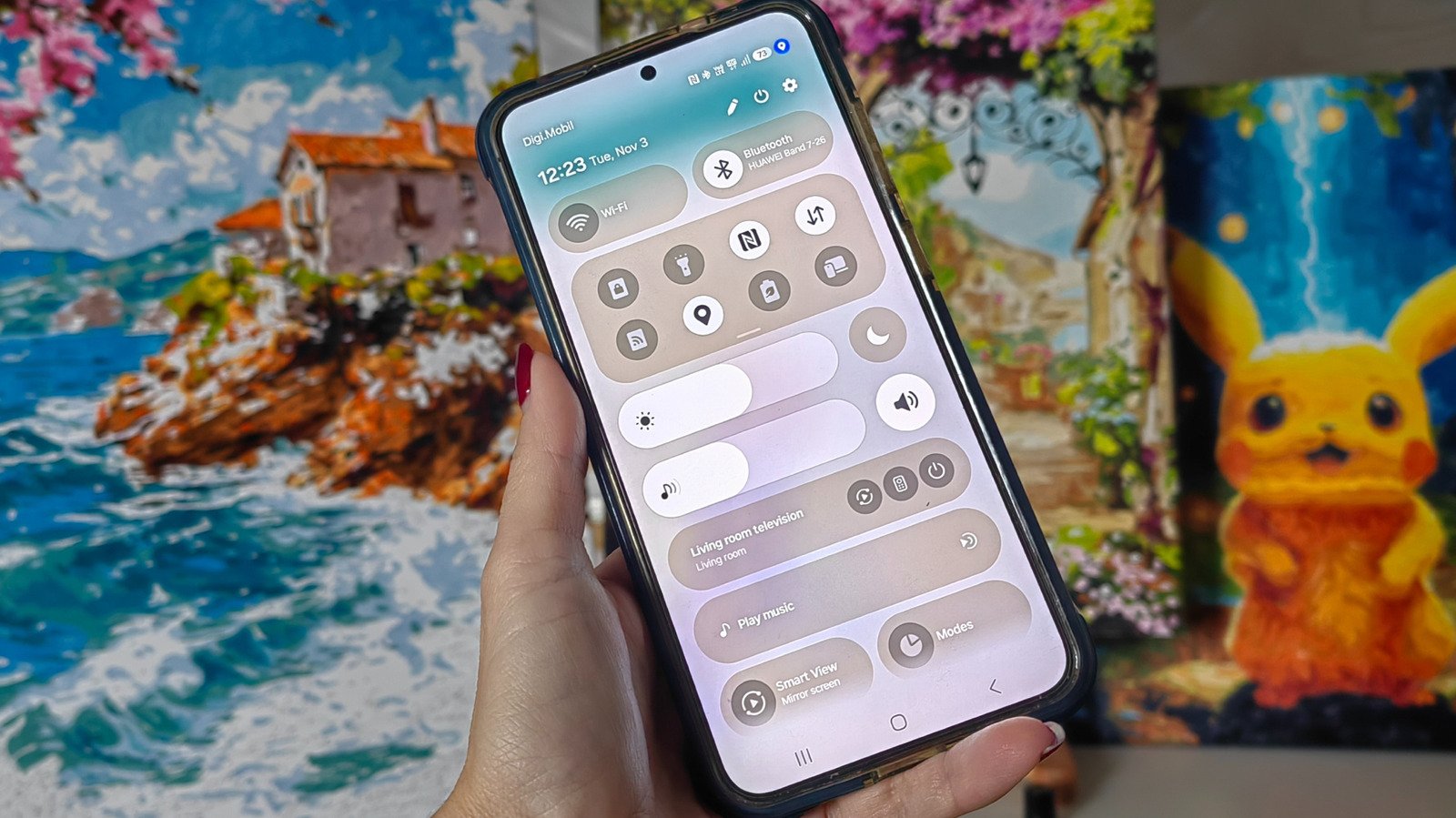
Seeing the dot while using a maps app is expected. If it appears when you have not opened an app or website that should need your location, that is a signal to investigate. Swiping down from the top of the screen and tapping the indicator typically reveals which app triggered it, giving you an immediate answer without guesswork.
Samsung phones on older One UI versions displayed only a location pin icon in the status bar. Starting with One UI 9, Samsung adopted the same blue pin used on Pixel devices.
How to Review and Manage Location Permissions
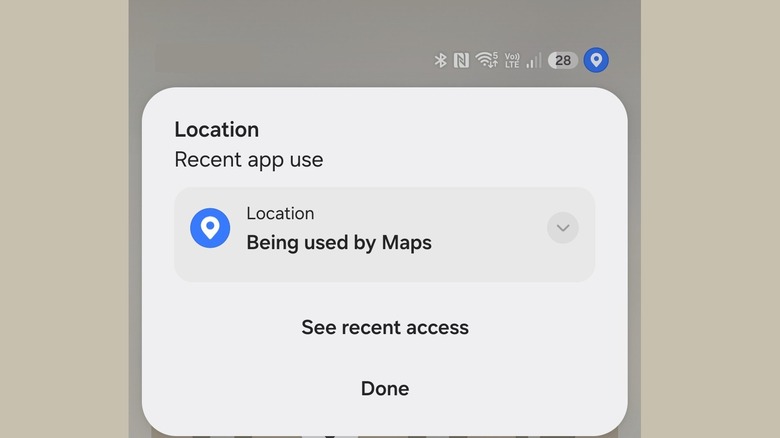
Noticing the indicator is the first step. Acting on it is what protects your privacy. Android makes it fairly straightforward to review which apps can access your location and adjust those permissions.
If you catch the notification while it is active, it will show which apps are using your location at that moment. Tapping See recent access and then choosing Location opens a more detailed usage history. That history shows what time your location was checked and whether the access happened while you were using the app or while it was working in the background. Tapping any entry takes you directly to that app’s location permission settings, where you can decide under what circumstances, if any, the app may check your location.
You can also take a longer route through settings: go to Settings > Security and privacy (or Privacy Controls) > Privacy > Permissions used in last 24 hours > Location.
For apps that genuinely need location to work well, such as weather services or navigation tools, setting permissions to “allow only while using the app” is a reasonable choice. You still get accurate directions or local forecasts, but the app cannot track your movements once you close it.
Why Location Data Deserves Scrutiny
Location data is among the most sensitive information a phone collects. It can reveal where you live, where you work, where you buy groceries and how you spend your free time. Apps access this data for legitimate reasons, but the blue dot exists so you can tell the difference between expected use and something that warrants a closer look.