
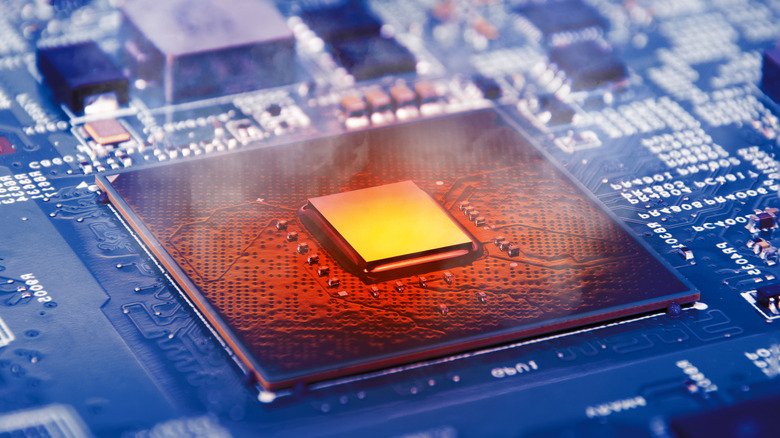
It’s a familiar scenario: you’ve been working or playing for a while, and suddenly your laptop gets hot—sometimes uncomfortably so. That warmth is usually nothing to worry about, but understanding what’s happening inside can help you keep temperatures in check and know when to seek help.
Why laptops heat up
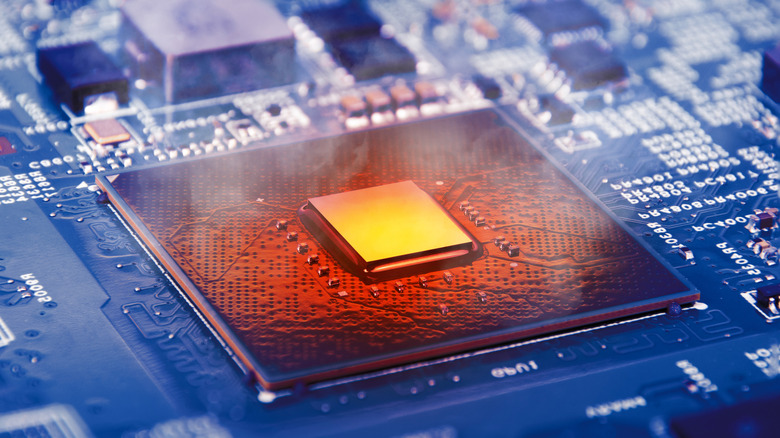
Every component in a laptop produces heat, and modern machines pack powerful processors, batteries, and other parts into very thin frames. When you run demanding tasks—like 3D gaming or video editing—heat builds up quickly. But even ordinary activities such as installing system updates or running background startup programs can keep the CPU and memory busy, raising temperatures and prompting the fans to spin faster.
These situations are generally normal. Internal sensors monitor component temperatures and decide when to speed up the fans or turn them off. If things get too toasty, the system may also trigger safeguards like throttling—temporarily slowing the CPU and GPU to bring heat down. In most cases, once you close the heavy programs, the laptop cools off within a few minutes.
Airflow and environment matter
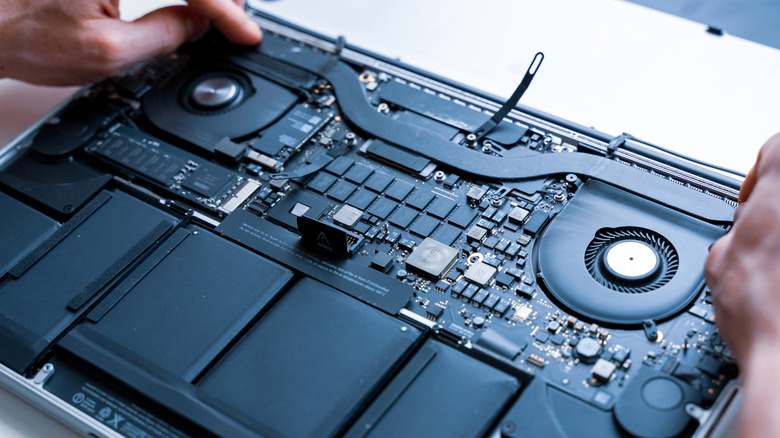
Good airflow is essential. Using your laptop on a bed or pillow can block the air vents, which most manufacturers advise against. External temperatures also play a role: Apple recommends keeping a MacBook between 50 and 95 degrees Fahrenheit, while Microsoft notes that Surface fans will run faster in environments above 77 degrees Fahrenheit.
Simple ways to cool things down
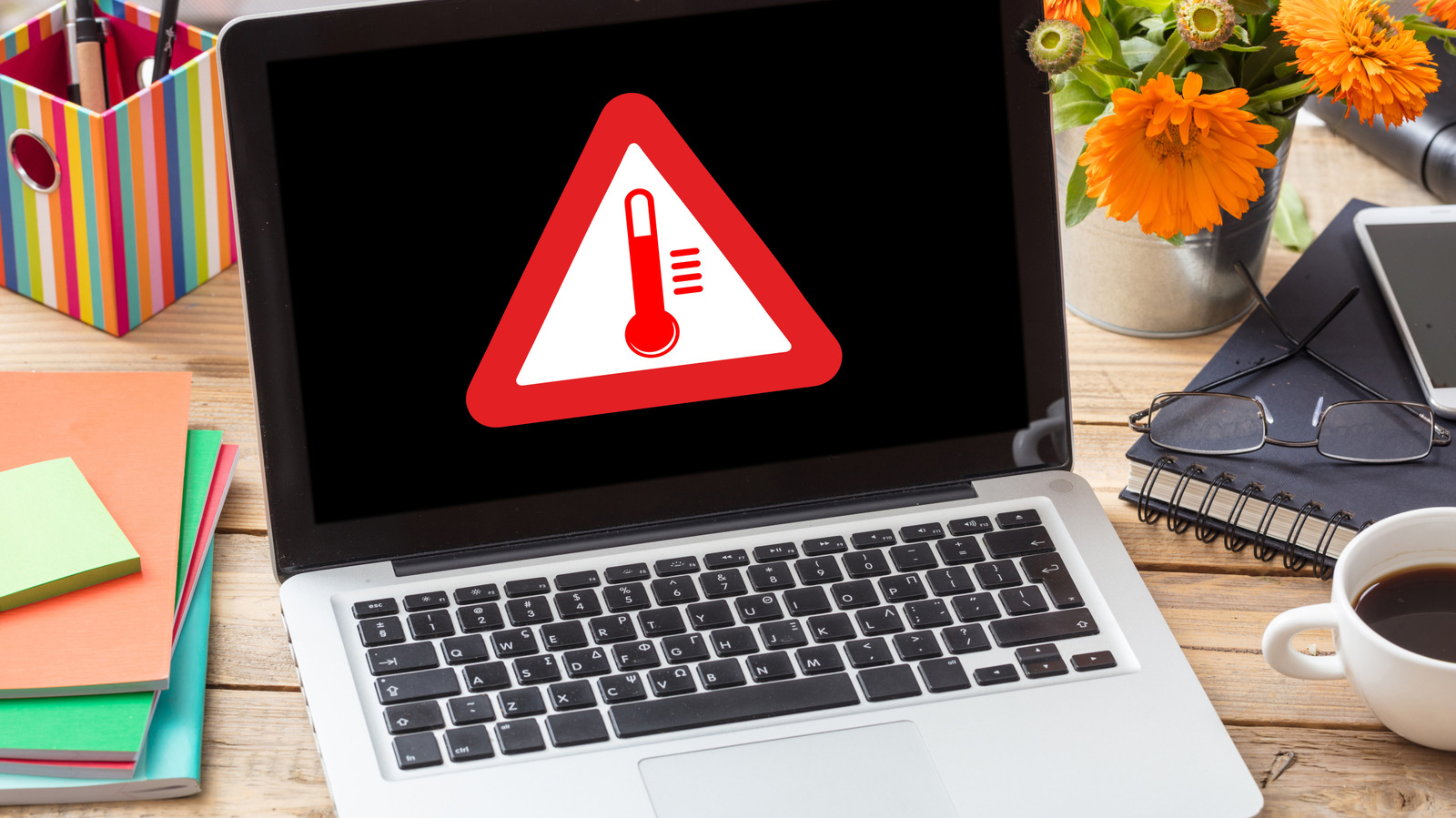
Start by making sure nothing is blocking the vents—a flat, hard surface is best. If you regularly run demanding software, a cooling pad with built-in fans can help. For dusty vents, gently clean them with a soft cloth, brush, or compressed air; never poke anything directly into the vents.
It’s also worth checking for background processes that are hogging the CPU. On Windows, press Ctrl + Shift + Esc to open Task Manager, then sort by CPU usage to spot the culprits. The Startup tab lets you stop programs from launching automatically. On a MacBook, open Activity Monitor via Spotlight and click the CPU tab to see which apps are using the most resources—closing them may bring temperatures down. Third-party apps can also help you monitor CPU and component temperatures.
When to get professional help
If these steps don’t help, technical support may be needed. Something could be preventing the fans from working, or the CPU thermal paste might have dried out. Older laptops also tend to overheat more easily because they struggle to keep up with newer software; in that case, downgrading to older software or considering a new machine may be the best path.