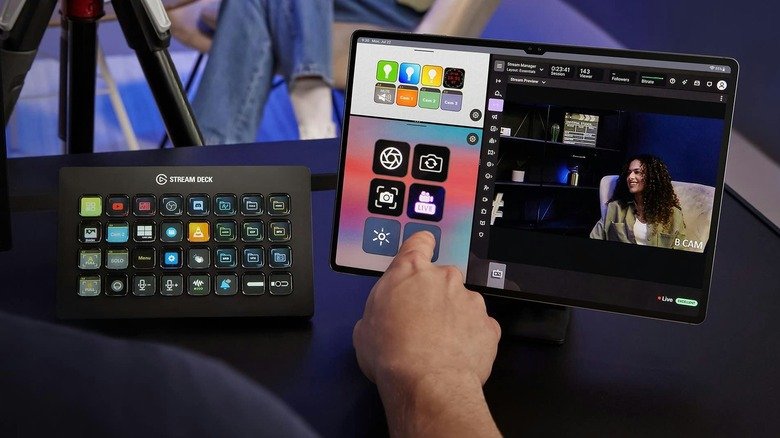
Streamers who have retired an iPad or Android slate may already own the hardware for a flexible control surface. Using an old tablet as a Stream Deck is possible through Elgato’s mobile app, which replaces the physical button pad with a touchscreen dashboard. The software supports iPadOS 15 and Android 9 or newer, so many tablets released in recent years can run it.
A traditional Stream Deck is a physical controller with programmable keys, each carrying a small display. Those keys can trigger actions on a Windows PC or Mac, such as launching an app, muting a microphone or switching cameras. Elgato now offers a mobile version that brings the same idea to phones and tablets, avoiding the cost of dedicated hardware.
What you need before pairing
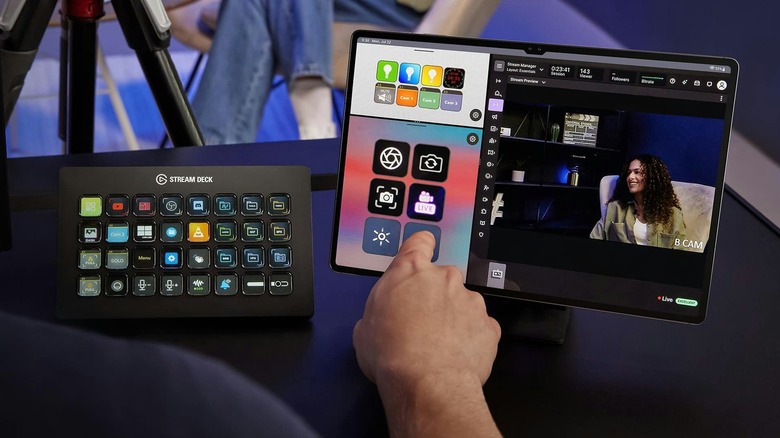
The setup involves two installations. On the computer, the Stream Deck app requires Windows 10 or macOS 10.15 or later. On the tablet, the app comes from the App Store or Google Play. Both devices normally need to be on the same local network, so a tablet relying on a 4G or 5G connection will not work for the standard wireless pairing.
Once the desktop app is running, open the device picker in the top-left corner and choose the option to add a mobile device. That generates a QR code. Scanning it with the tablet’s Stream Deck app completes the pairing, a process that generally takes five minutes or less.
Solving connection problems
If the computer and tablet fail to communicate, a firewall or antivirus program may be blocking the connection. Windows users might also need to change their network profile from Public to Private.
Apple users have an alternative: the Mac and iPad versions of the app can pair over USB rather than Wi-Fi. That route simplifies pairing and provides a more stable link with lower latency when a button is pressed.
Building your button layout
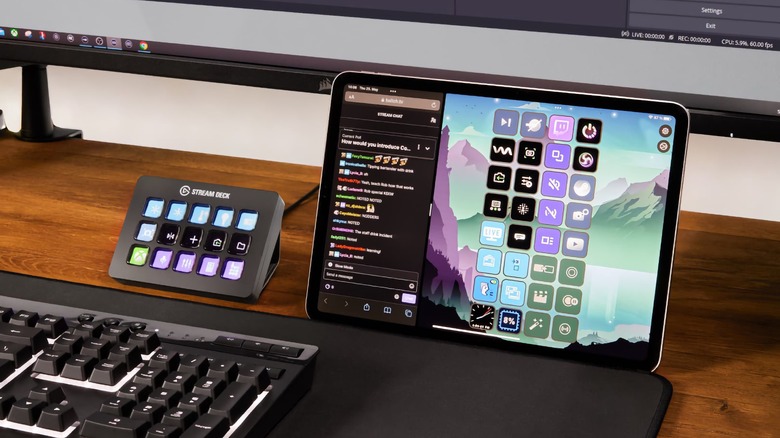
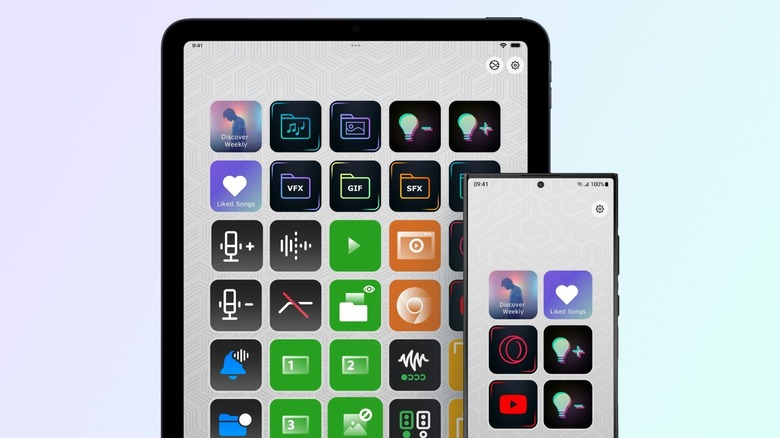
After pairing, the tablet becomes the dashboard. Actions can be dragged from a panel onto empty keys, just as they would be arranged on a hardware Stream Deck. Elgato provides plugins for streaming essentials including OBS Studio, Twitch and YouTube, as well as Spotify. Smart lighting from Philips Hue, Nanoleaf and Govee is also supported.
The free tier of the mobile app allows six buttons, with unlimited access to actions and no trial period. That matches the button count of the Stream Deck Mini, Elgato’s smallest controller, and is enough for basics such as starting a broadcast or muting a mic.
Stream Deck Mobile Pro raises the limit to 64 buttons, more than the Stream Deck + XL, and adds different grid options and custom backgrounds. On an iPad, Split View can display two keypads side by side. Pricing is $2.99 per month or $24.99 per year, and Elgato also sells a lifetime license for $49.99.
Practical touches for livestreams
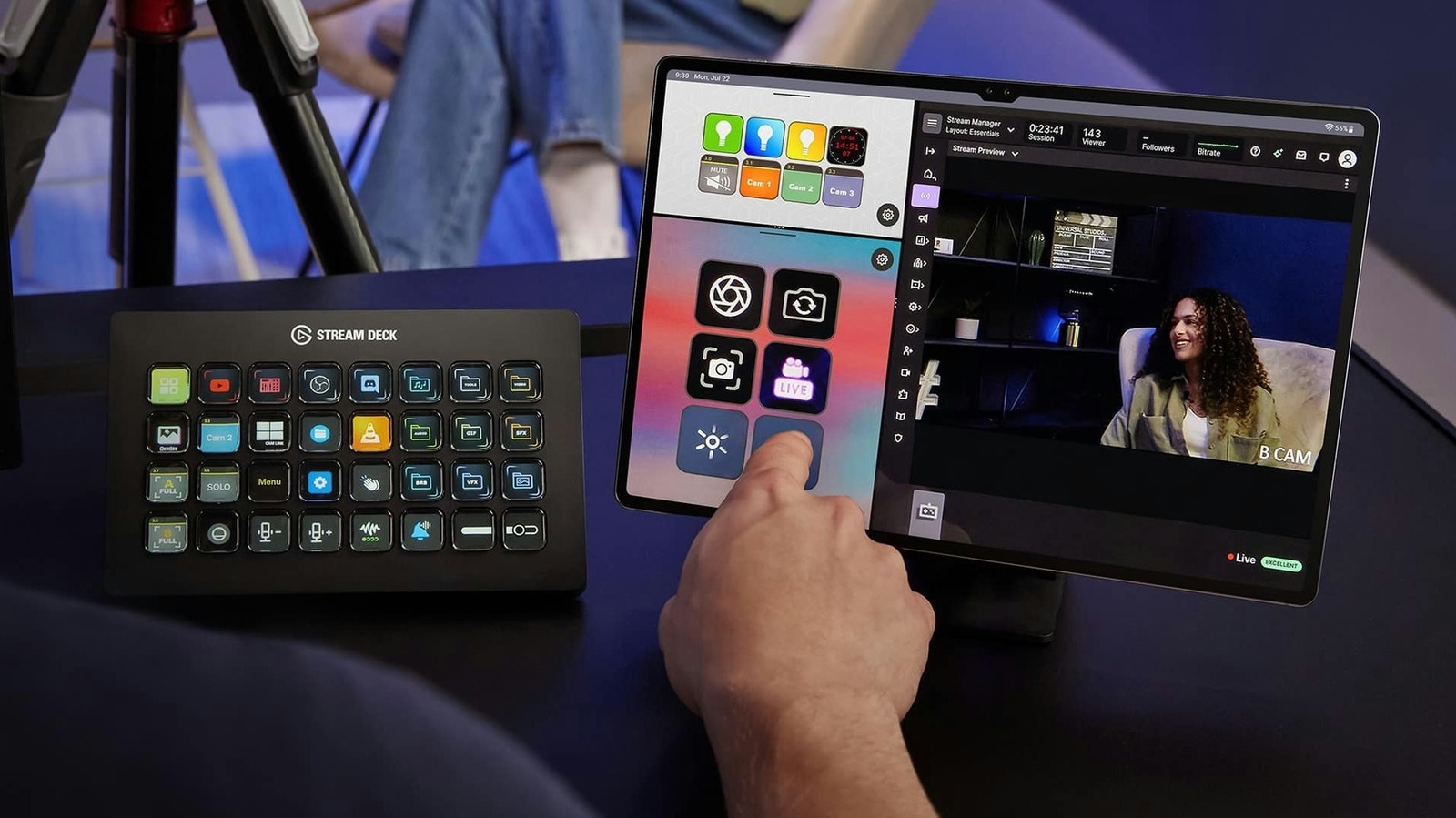
A tablet pressed into control duty benefits from a few adjustments. An inexpensive stand keeps it visible during a session, and leaving it plugged in prevents the battery from running down mid-stream. The screen also needs to stay awake so the buttons remain accessible. On an iPad, Auto-Lock can be set to Never under Settings, then Display & Brightness. Android tablets offer a comparable display setting.