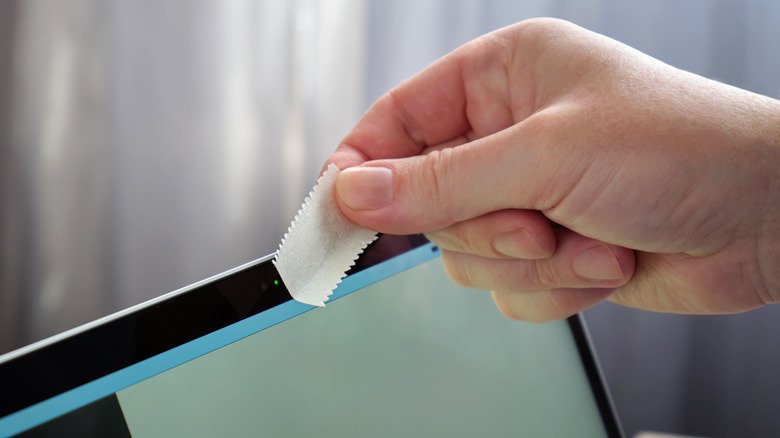
webcam cover on MacBook — A webcam cover on a MacBook may seem like a simple privacy safeguard, but Apple cautions that the accessory can cause permanent damage to the display. The company’s guidance is clear: the space between the screen and the keyboard is engineered to millimeter precision, and adding any thickness there can lead to cracks or a display that stops working.
How a thin cover becomes a costly problem
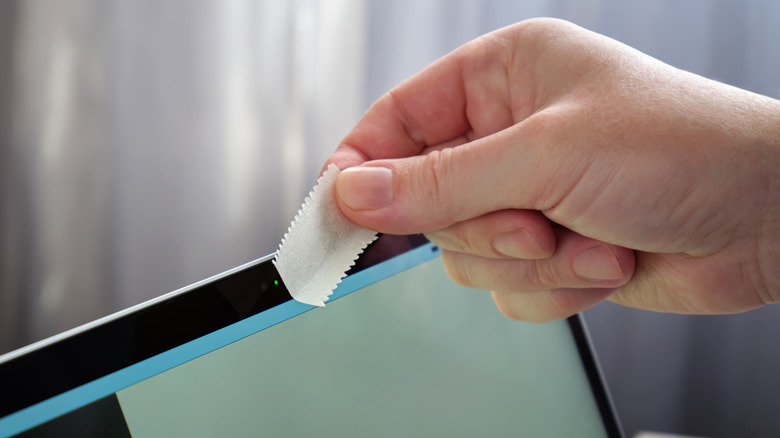
When a MacBook lid closes, the glass rests directly above the keyboard and palm rest. Apple lines the lid with a thin rubber strip to spread pressure evenly. A webcam cover creates a concentrated pressure point in that otherwise balanced system. Over time, or after a single forceful close, that spot can develop permanent marks, cracks, or even a screen that fails to turn on.
The risk is not theoretical. Apple explicitly warns that closing a MacBook with a camera cover installed can damage the screen. The company also notes that residue from attaching and removing such covers can interfere with camera-dependent features like automatic brightness.
Newer MacBook models make the situation trickier. The camera sits in the notch at the top of the display, surrounded by bezels so thin that there is almost no flat frame to attach a cover. Even a small piece of plastic may not sit flush, increasing the chance of pressure on the glass.
What Apple recommends if you must cover the lens
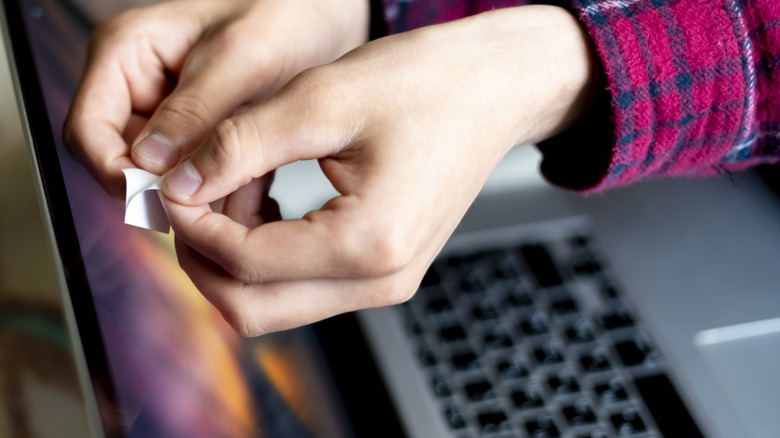
For anyone who still wants a physical barrier, Apple suggests using a cover no thicker than a sheet of paper—roughly 0.1mm. Anything thicker raises the risk of screen damage. It is also worth remembering that damage caused by webcam covers is not covered under warranty, so repairs would come out of your own pocket.
Built-in protections make a cover unnecessary for most
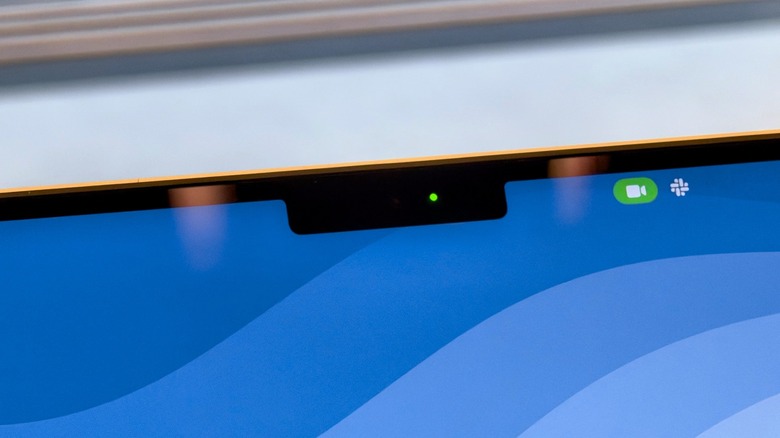
Most MacBooks already offer a reliable way to know when the camera is active. A green indicator light next to the lens is tied directly to the webcam, so the camera cannot run without triggering it. On the MacBook Neo, which lacks a built-in LED, macOS displays a green dot at the top-right of the screen that overlays all other content.
Software permissions add another layer. Apps must ask for permission before using the camera. If the indicator appears when you are not on a call or taking a , that is a signal to investigate.
To review which apps can access the camera, open System Settings, go to Privacy & Security, and click Camera. There you can see every app with webcam access and revoke permission for any that should not have it. A green camera icon in the menu bar also shows which app is currently using the webcam.
Safer habits for privacy-minded users
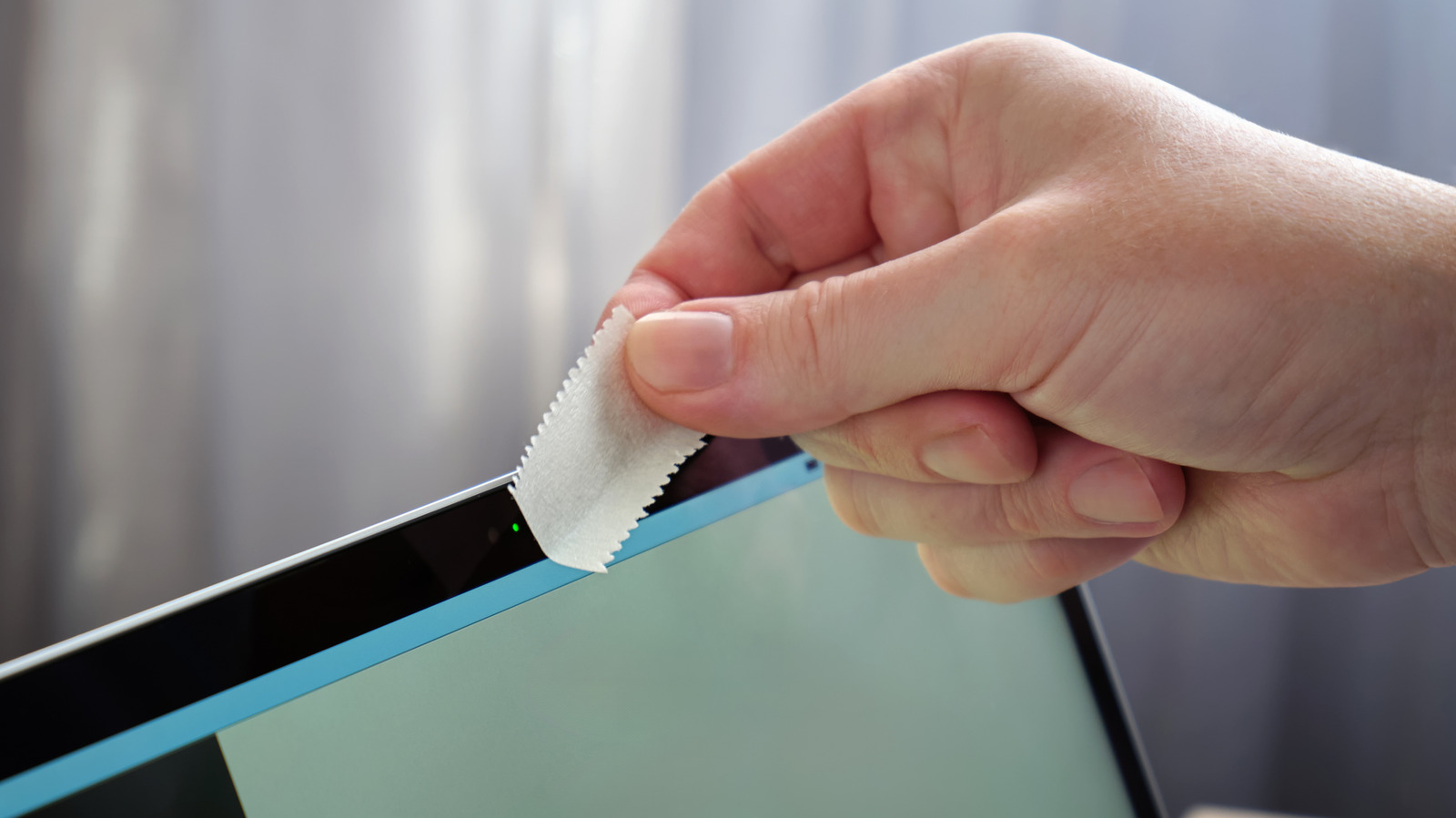
If a workplace policy requires a webcam cover, follow Apple’s thickness guidance and remove the cover before closing the lid. For everyone else, the combination of the hardware indicator light and macOS camera permissions provides strong protection without putting the display at risk.