

Most of us install apps without a second thought, but taking a few minutes to check app permissions can reveal which services have access to your camera, location, contacts, or files. Both Android and iOS include straightforward tools for reviewing and limiting that access, and using them regularly is a practical way to keep personal data more secure.
Why permissions deserve a second look
An app asking for your location or microphone is not automatically dangerous. The more useful question is whether the request makes sense for what the app does. When a permission seems unrelated to the app’s purpose, it is worth reviewing. Mobile operating systems already have security measures that detect and block malicious apps, but permissions still control how much sensitive information or device hardware an app can reach.
Camera and location data are particularly sensitive, which is why both platforms display on-screen indicators when an app is actively using the camera, microphone, or location. On iPhone, a green dot appears when the camera is in use, an orange dot signals microphone activity, and a blue icon indicates location access. Android phones show similar icons in the status bar, and swiping down to the Control Center or quick settings panel reveals which app is responsible.
Managing permissions on iOS
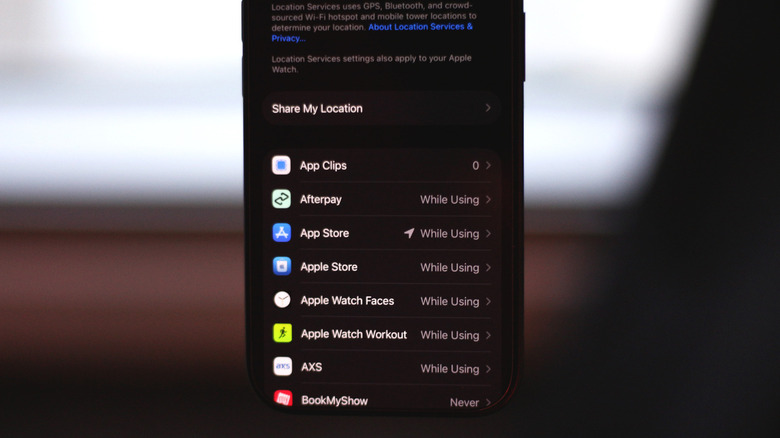
Apple’s mobile operating systems, including iOS 27 and iPadOS 27, require third-party apps to ask for permission the first time they need access to contacts, photos, location, or the microphone. Location requests offer choices such as Allow Once for temporary access or Allow While Using App for ongoing use while the app is open.
To review everything at once, open Settings and go to Privacy & Security. Each permission type is listed with the number of apps that have access. Tapping a category, such as Microphone, shows every app allowed to use it, and a toggle next to each app lets you revoke access.
Some apps, like Google Maps or Uber, may work best with Precise Location enabled and location access set to Always. Those settings can still be adjusted per app. For access, an app can be limited to only the images and videos you select. Turning on App Privacy Report adds another layer of visibility, showing which apps have accessed data and sensors, along with the network domains they contact and when.
Checking permissions on Android
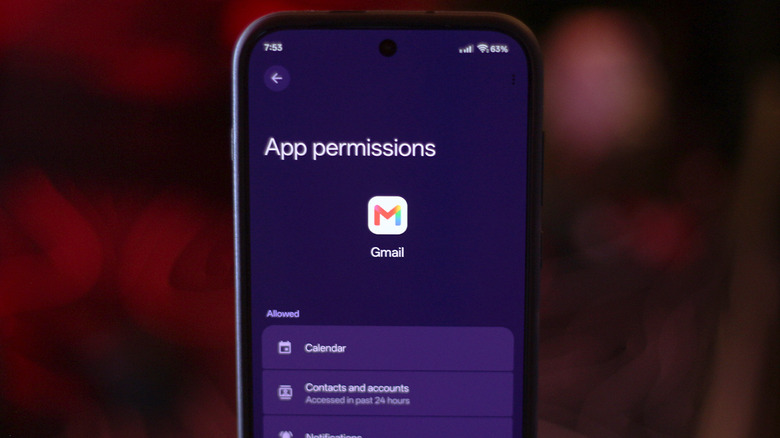
Android’s privacy controls have improved over time, and permissions can be managed app by app. Menu labels differ by manufacturer, but the path to the information is generally similar.
The quickest route to revoke a specific app’s access is through its App info page. Long-press the app icon and tap the information icon, or go to Settings > Apps > See all apps and choose the app. From there, tap Permissions, select a data type, and choose Allow or Don’t allow. Location permissions often include options for All the time or Allow only while using the app.
Android also provides a Privacy dashboard that groups permission types and shows which apps have used them in the past 24 hours. The exact location of this menu varies, so check the Security and privacy section of Settings or use the search box. Apps must request permissions when first launched, and you can allow or deny each request at that point.
Check before you install
Permissions can also be reviewed before an app is installed. Both the Play Store and the App Store list the information an app may request access to, giving you a chance to reconsider before downloading. A periodic review of installed apps, combined with a glance at store listings, keeps you informed about what your phone’s software can see and use.


