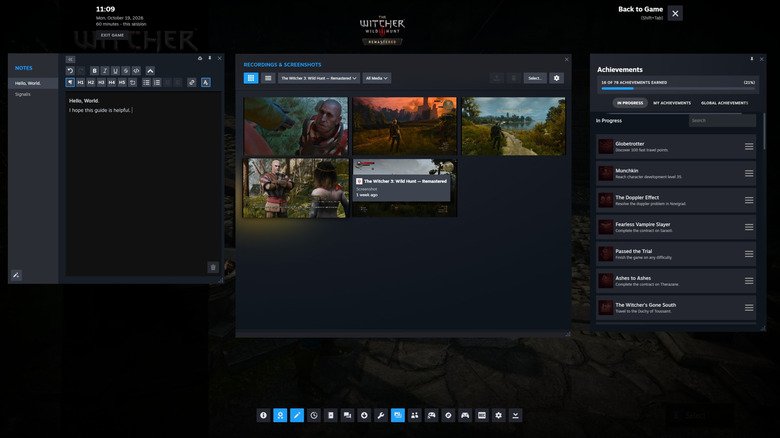
Most PC players know the Shift and Tab reflex, but the Steam overlay features hiding behind that shortcut go well beyond a friend list and a chat box. Valve redesigned the in-game interface in 2023, and the result packs several utilities that can save you from alt-tabbing or reaching for your phone. You can change the shortcut or switch the overlay off entirely through Steam’s settings, under the In-Game section. Steam also remembers how you arrange the overlay for each game, so a layout you set up once carries over the next time you launch that title.
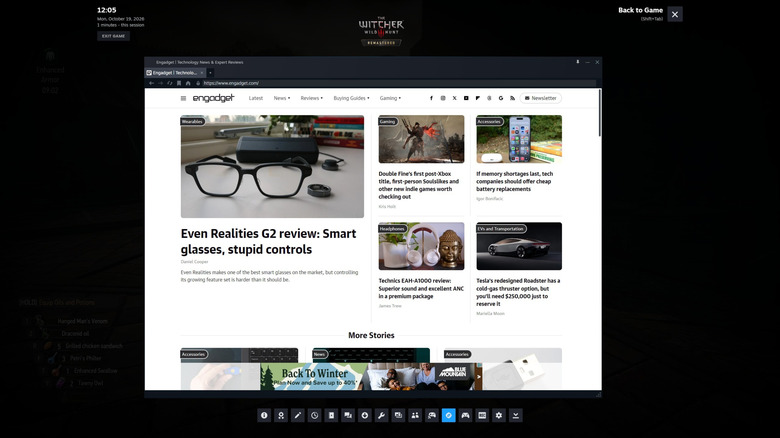
A browser that stays inside the game
Alt-tabbing to a browser works, but it pulls you out of the game window. The overlay’s built-in browser keeps you closer to the action, which helps when you need to look up a quest solution or check something mid-session. Steam’s community guides are reachable from the same place, and favoriting a guide makes it quicker to pull up again later.
Notes for puzzle solving and planning
Games that demand scribbled clues, such as Blue Prince or Tunic, are easier to manage when you can jot things down without leaving the screen. The overlay includes a text editor that supports formatting and code blocks, so it handles more than a quick line of text.
A timer you can pin on screen
Short gaming windows are common, and keeping an eye on the clock without glancing at a phone is a small but real convenience. The overlay’s timer does that job, and any overlay element can be pinned so it stays visible during play. Pinned items are excluded from screenshots taken through Steam, so your captures stay clean.
Screenshots and clips, ready to share
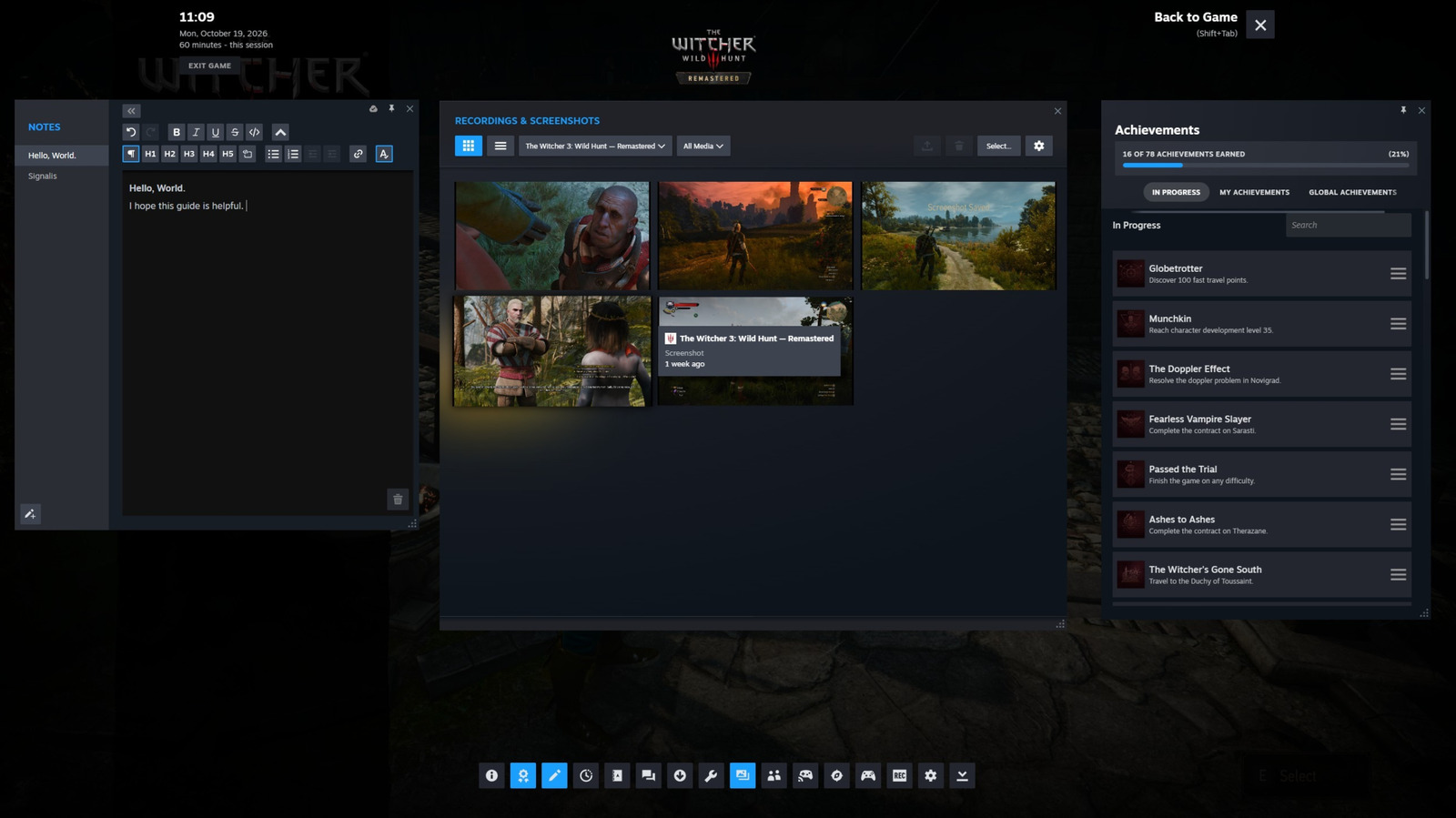
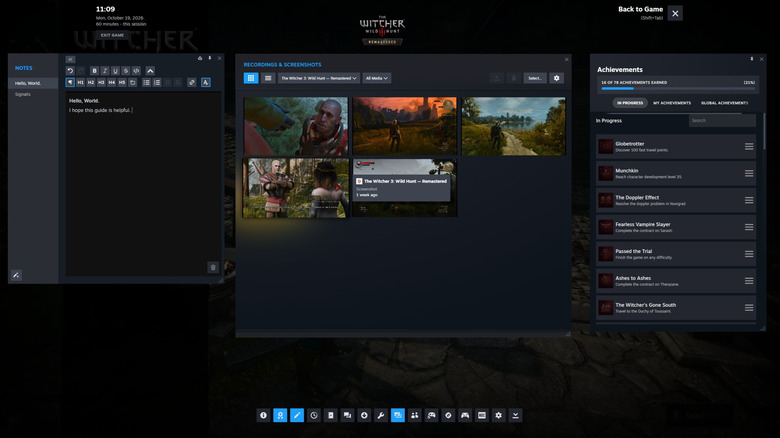
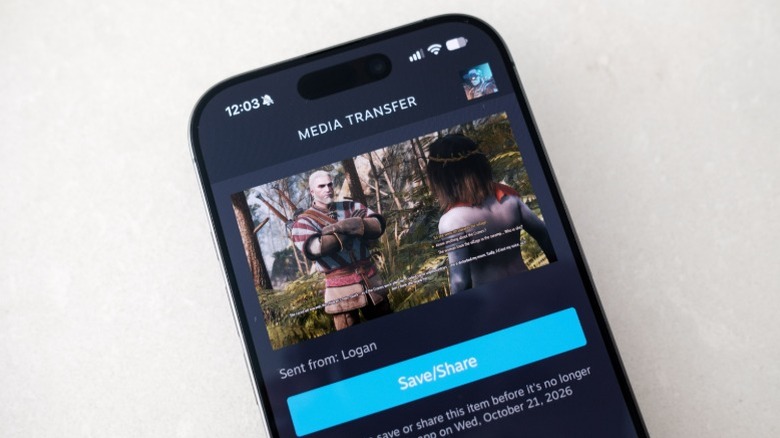
The overlay also acts as a gallery for images and recordings, including captures made in other games. Selecting a screenshot and choosing Share lets you save it to a folder or send it to a Steam friend through chat. The Steam Mobile app for Android and iOS can receive those screenshots and recordings directly on your phone, which makes posting gameplay to social media simpler.
Remote Play Together starts in the overlay
Valve’s Remote Play Together protocol lets friends join local co-op games over the internet at no cost, with most connections supporting up to four players. A friend does not need to own the game as long as it supports the protocol, and you can hand over keyboard control if they lack a controller. Remote Play does not give them access to the rest of your PC. The overlay is where you launch a session: press the Remote Play button and send out invites.
None of these tools require extra software or a second screen. They sit behind the same shortcut, arranged along the bottom of the overlay, and each one is a click away. For players who have ignored that interface for years, the five options above are a reasonable place to start exploring what else it can do.