A bottleneck calculator offers a fast, automated way to estimate whether a processor or graphics card will hold back the other in a planned build. The tool compares the two components against a chosen resolution and returns a percentage that suggests how much one part may limit the other. It is a useful starting point for checking component compatibility before buying or upgrading, but its estimates are theoretical and often miss the nuances of real hardware behavior.
How the Calculation Works
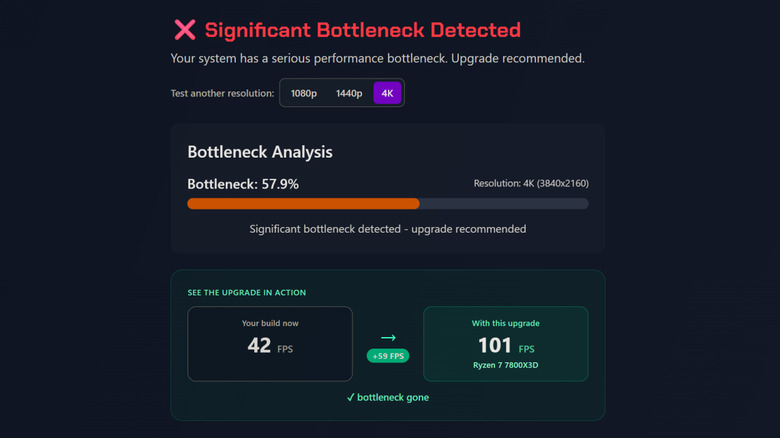
Most online tools ask for a specific CPU and GPU pairing, then evaluate how those parts are expected to perform at a target resolution such as 1080p, 1440p or 2160p. When both components are rated to handle the demand at that resolution, the resulting bottleneck score tends to sit around 10 percent or lower. A higher percentage points to a mismatch, with the weaker component flagged as the limiting factor.
The resolution matters because a graphics card’s workload depends on how many pixels it must render each second. A GPU that handles 1080p comfortably may struggle at 4K, while a processor that keeps up in most games can become the constraint in CPU-heavy scenarios. Calculators use manufacturer specifications and theoretical performance ratings to generate their scores, not live measurements from the user’s machine.
CPU vs. GPU Bottlenecks
In most systems, the processor is the more common source of a bottleneck. The CPU coordinates instructions and feeds data to the rest of the system; when it falls behind, other components wait, which can show up as stuttering in games. A graphics-card bottleneck tends to appear differently: GPU usage may hover near 95 percent while the card struggles to render the application, producing low frame rates, screen tearing or inconsistent performance. GPUs are more likely to hit their limits when asked to render well above their intended resolution or frame rate.
Spotting the pattern during a stress test can help. If the CPU is pinned at 100 percent while the GPU sits mostly idle, the processor is the likely culprit. If the GPU is maxed out while the CPU has headroom, the graphics card is the constraint.
Why the Scores Are Rarely Accurate
Bottleneck calculators are inherently limited because they rely on spec sheets rather than data from the actual PC. They cannot account for variation among individual components, the demands of specific applications, or how different games use hardware. A newer Intel GPU, for example, may struggle with an older DirectX 11 title that runs smoothly on many Nvidia or AMD cards. A high-end workstation processor such as the Ryzen 9 7950X may trail several X3D Ryzen chips in gaming because those chips have larger L3 caches. These distinctions disappear inside a single percentage score.
Other real-world factors are also absent. Installed drivers, background applications that should be disabled, and performance problems within the game being tested all influence actual results. A calculator has no way to observe any of them.
Where These Tools Still Help
Despite their shortcomings, bottleneck calculators serve a practical purpose during the planning stage. They provide a quick compatibility check for a proposed CPU and GPU combination at a target resolution, which can save time before a build or upgrade. Hobbyists also use them to explore unusual hardware pairings that would not normally appear in a standard build.
For diagnosing an existing system, performance monitoring software is the more dependable route. It measures how the components actually behave under load, including the variables a calculator must ignore. A bottleneck percentage is a rough guide, not a verdict, and treating it as the final word can lead to unnecessary upgrades or missed problems.
Using a Calculator Sensibly
The most effective approach is to treat a bottleneck calculator as a first-pass filter. Run the proposed pairing at the resolution you intend to use, note whether the score suggests a serious imbalance, and then verify with real-world benchmarks or monitoring tools before spending money. If a calculator flags a CPU as the limiter, confirm that the workload in question is actually CPU-sensitive. If it flags the GPU, check whether the target resolution or frame rate is realistic for that card.
Calculators cannot replace hands-on testing, but they can narrow the options and prompt better questions. Used with that caveat in mind, they remain a convenient, if imperfect, part of the build-planning toolkit.