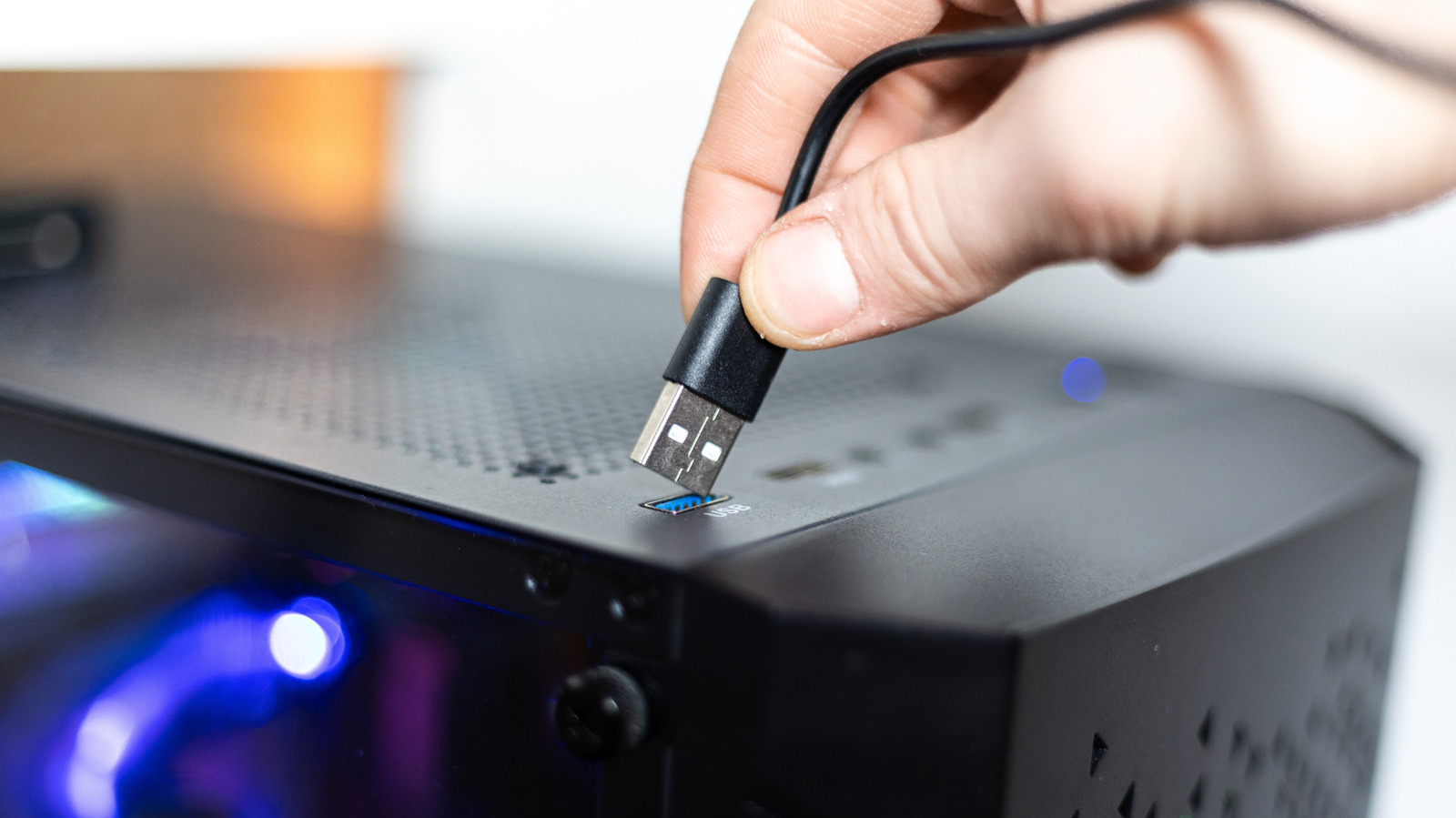

Plugging a device into the front USB ports on a desktop is second nature. They are right there, easy to reach, and save you from crawling behind the case. But that convenience can come at a cost: depending on what you connect, the device may transfer data more slowly or charge at a lower rate than it would on a rear port. The issue is not a defect in your computer. It comes down to how front USB ports are wired and how motherboard makers allocate speed and power across them.
Why the wiring puts front USB ports at a disadvantage
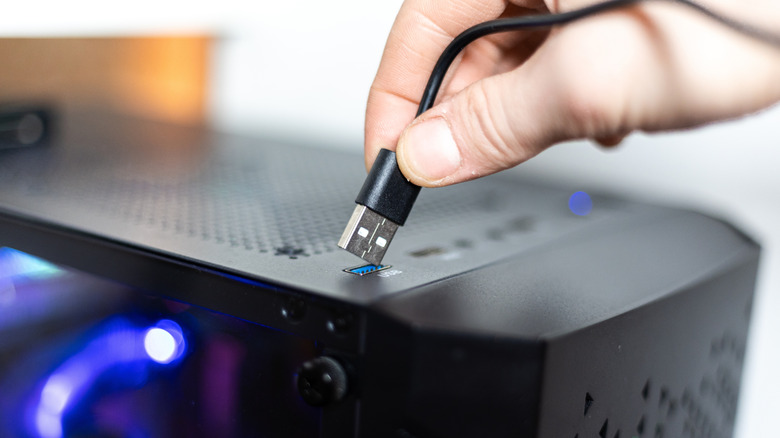
Rear USB ports are typically soldered directly onto the motherboard. Power and data travel over a short, direct path. Front ports are different. They reach the motherboard through extension cables, adding layers to the connection. Each layer introduces some signal loss, even if it is small.
There is also the matter of shared bandwidth. Many motherboards offer multiple high-speed headers for rear ports, but front-panel ports often rely on a single connector. That means the available speed and power are divided among all the front ports on the case. On some boards, two external SSDs plugged into the front at the same time will share the same 5 Gbps transfer rate.
Manufacturers also tend to use slower USB standards for at least some front ports. The ASUS ROG Maximus Z790 Hero illustrates the gap. Its rear panel includes two 40 Gbps Thunderbolt 4 ports, six 10 Gbps USB 3.2 Gen 2 ports, and four 5 Gbps USB 3.2 Gen 1 ports. The front panel has one USB 3.2 Gen 2×2 port, which is theoretically 20 Gbps, but it also has four USB 3.2 Gen 1 ports at 5 Gbps powered by two headers. Those four ports draw from a shared pool of speed.
Macs are not exempt. The current baseline Mac mini with the M6 chip has two front USB-C ports that top out at 10 Gbps. Its rear Thunderbolt 4 ports reach up to 40 Gbps. The latest Mac Studio follows the same pattern: the base model has two 10 Gbps USB-C ports on the front, while Thunderbolt ports are only on the back.
What belongs on the front and what should go on the back
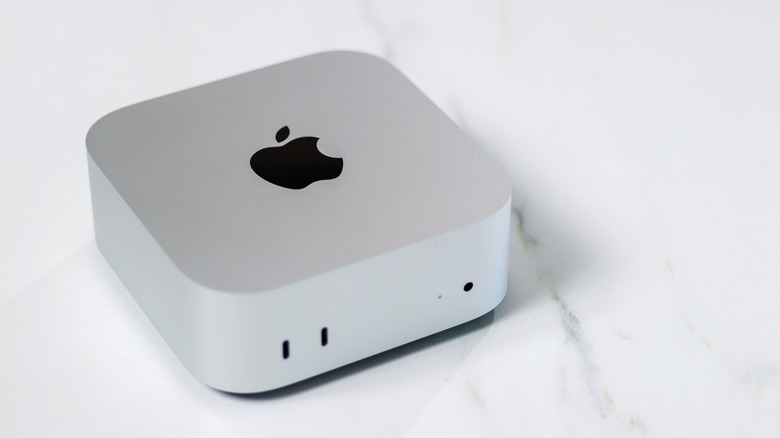
For plenty of everyday peripherals, the front ports are perfectly adequate. A mouse, keyboard, or headset uses very little power and does not need high bandwidth. A regular USB flash drive is also fine on the front if you are not moving large amounts of data or constantly reading and writing to it.
Rear ports make more sense for devices that demand bandwidth or low latency. External SSDs, capture cards, and VR headsets are good examples. Connecting them to high-speed ports can make a noticeable difference, and some may not work properly on slower ports at all.
It is worth checking your motherboard or computer specifications to see the exact speed of each USB port. That way you can match each accessory to the right connection. Symbols or colors on the ports can offer a hint, but they are not always consistent.
The practical takeaway
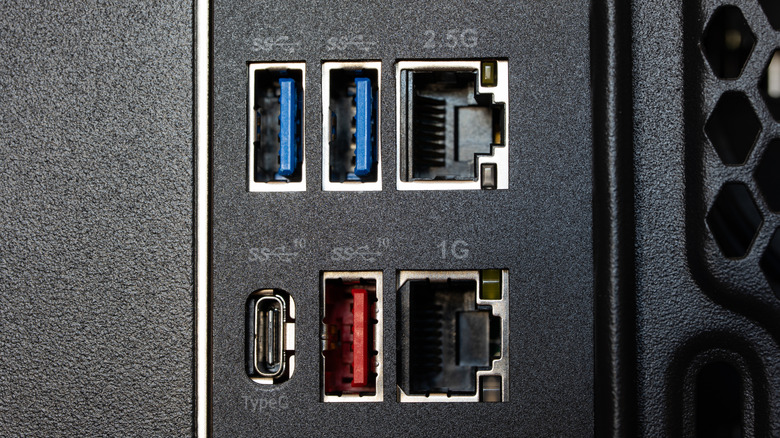
Front USB ports remain useful for quick connections and low-demand devices. The slowdown is not universal, and many modern PCs have high-end ports on the front. In a lot of cases, you will never notice a difference. But when you do notice it, the reason is usually the wiring, shared bandwidth, or the USB standard chosen for the front panel. Rear ports are the safer bet for anything that needs maximum speed or stable power.